
In Part 2, I want to focus on Azure API Management – how it pairs with AI solutions in Azure, and how I’m using it within the Open WebUI solution. The more I build AI workloads in Azure, the more I’m realising just how integral Azure API Management (APIM) is to the whole picture. In fact, I’d argue it’s pivotal for almost any AI solution you deploy in Azure, especially those connecting to Microsoft Foundry.
A few reasons stand out:
- Central gateway for authorisation & control to Microsoft Foundry
- Richer LLM metrics and logging telemetry
- Secure backend calls through Managed Identity
- Organisation‑tailored APIM policies for enhanced security and validations (OAuth, Custom errors, custom logic, caching, etc.)
In this blog, I’ll break down:
- How I’m using APIM with the Azure OpenAI V1 (via Microsoft Foundry) as an AI Gateway in Azure
- Central control & authorisation to Foundry through Azure APIM with Entra ID OAuth (including Open WebUI app roles) and Managed Identities
- How to configure and inspect LLM metrics, custom metrics, token usage, and tracking – breaking down the APIM policy section by section
- Integrating Application Insights for telemetry and diagnostics
Azure API Management – API Endpoint
There is solid integration between APIM and Microsoft Foundry. The Azure Portal even allows you to use the Import Wizard to bring the API straight into APIM. You’ll notice three available APIs: Azure OpenAI API, Microsoft Foundry API, and Azure OpenAI V1 API.
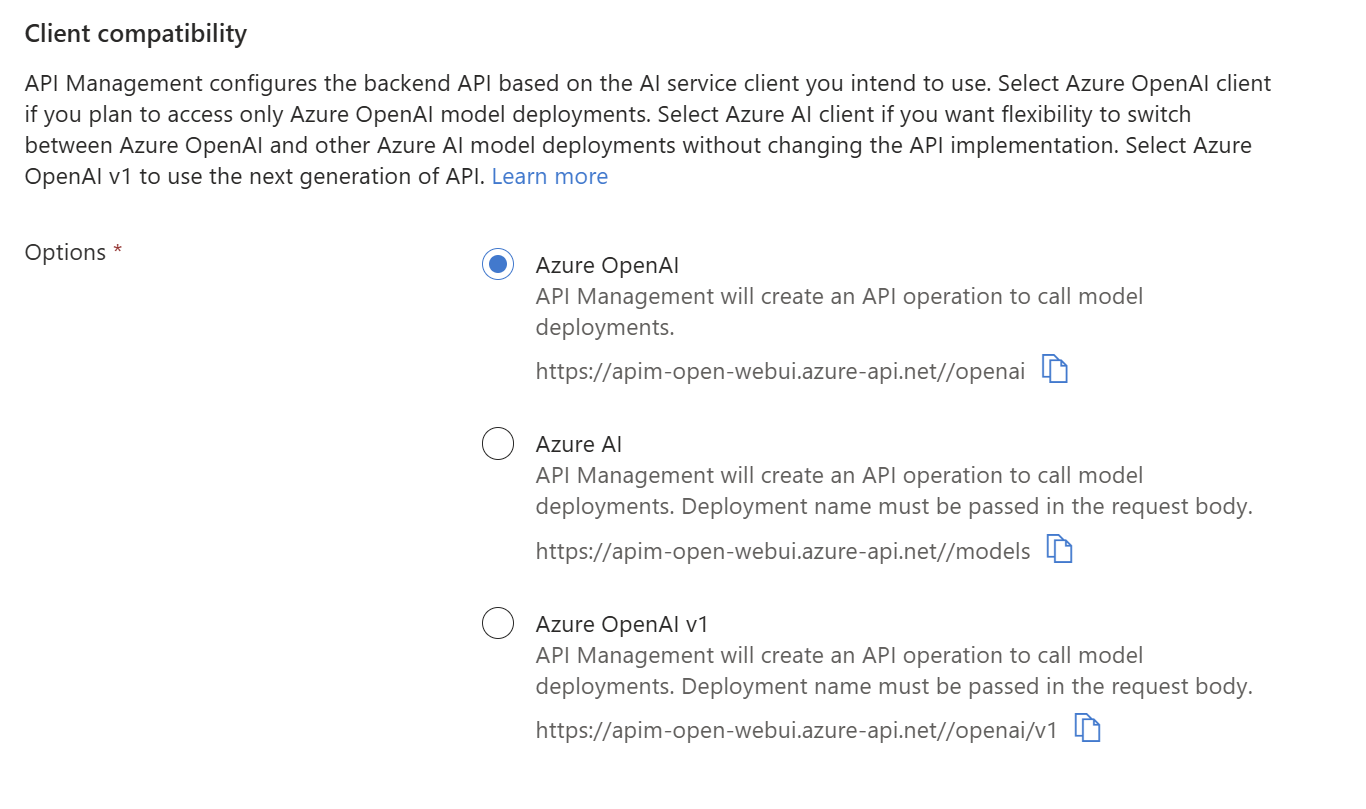
Here’s the TLDR for each:
Azure OpenAI
The legacy Azure‑specific API. It requires Azure‑specific paths, api-version parameters, deployments, and SDKs.
Microsoft Foundry API (new)
A unified Foundry API that can discover and call all available models via the /models endpoint by simply passing the model name in the request body. It’s better for model discovery, is native to Foundry, and will likely support features such as automatic model routing in the future.
Azure OpenAI V1 (also new)
The newer unified V1 endpoint that mirrors the standard OpenAI API structure rather than using Azure‑specific conventions. This is the direction going forward for OpenAI compared to the legacy API above.
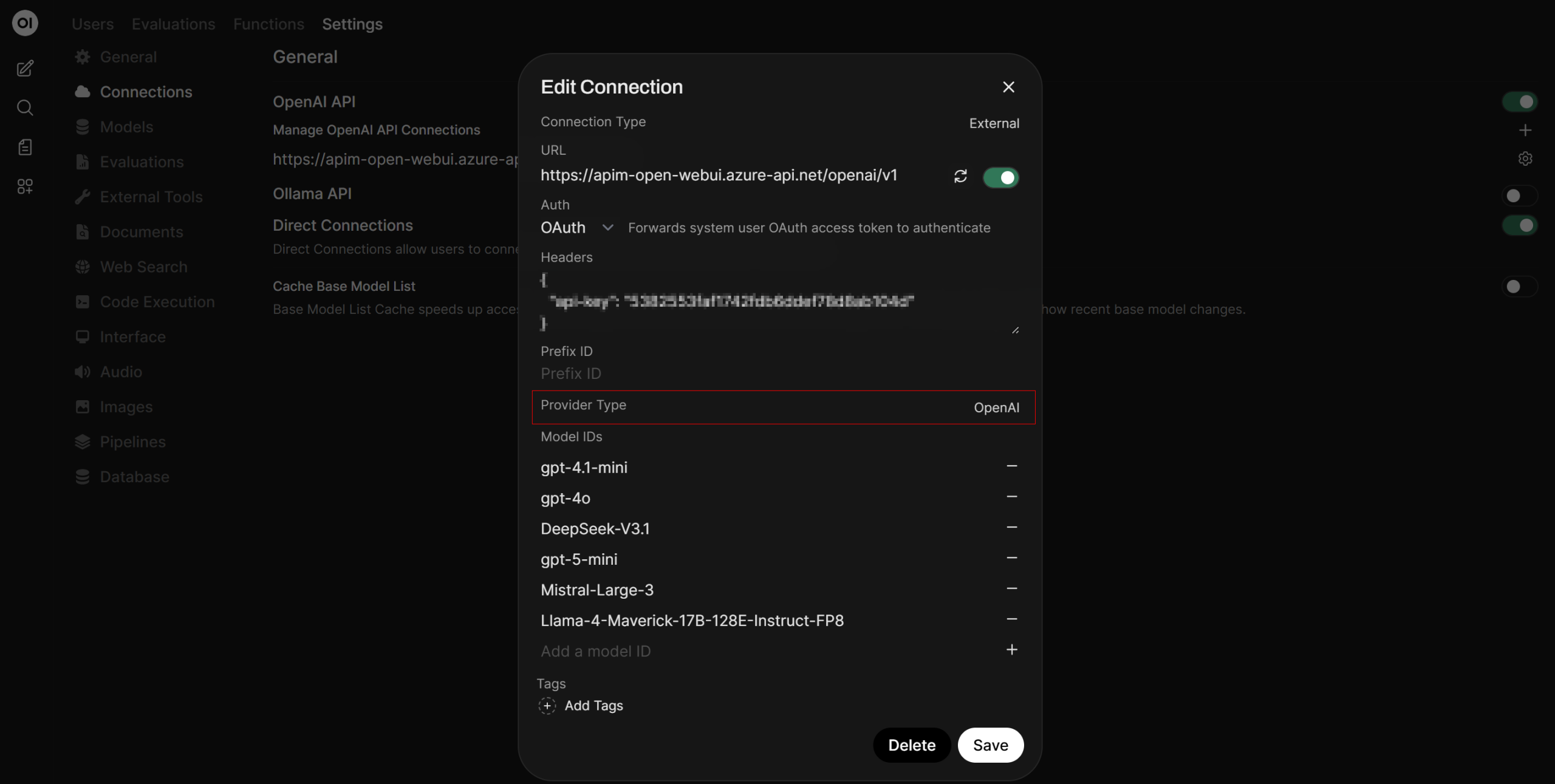
The interesting part is that you can call any Foundry model through the Azure OpenAI V1 API (for chat completions), meaning you don’t need to use the Microsoft Foundry API for this scenario in order to call Grok 4 for example. This is particularly important for Open WebUI, because Open WebUI automatically constructs the suffix URL when you choose the “OpenAI” connection type for you.
- Azure OpenAI → uses the legacy Azure URL format
- OpenAI → uses the unified
/v1/chat/completions/*endpoint
Open WebUI has no native way to construct the Foundry API URL, so using the Azure OpenAI V1 endpoint was the only viable approach to integrate Foundry models with Open WebUI.
The API backend is calling the Microsoft Foundry URL (<your-foundry-name>.services.azure.ai.com/openai/v1):
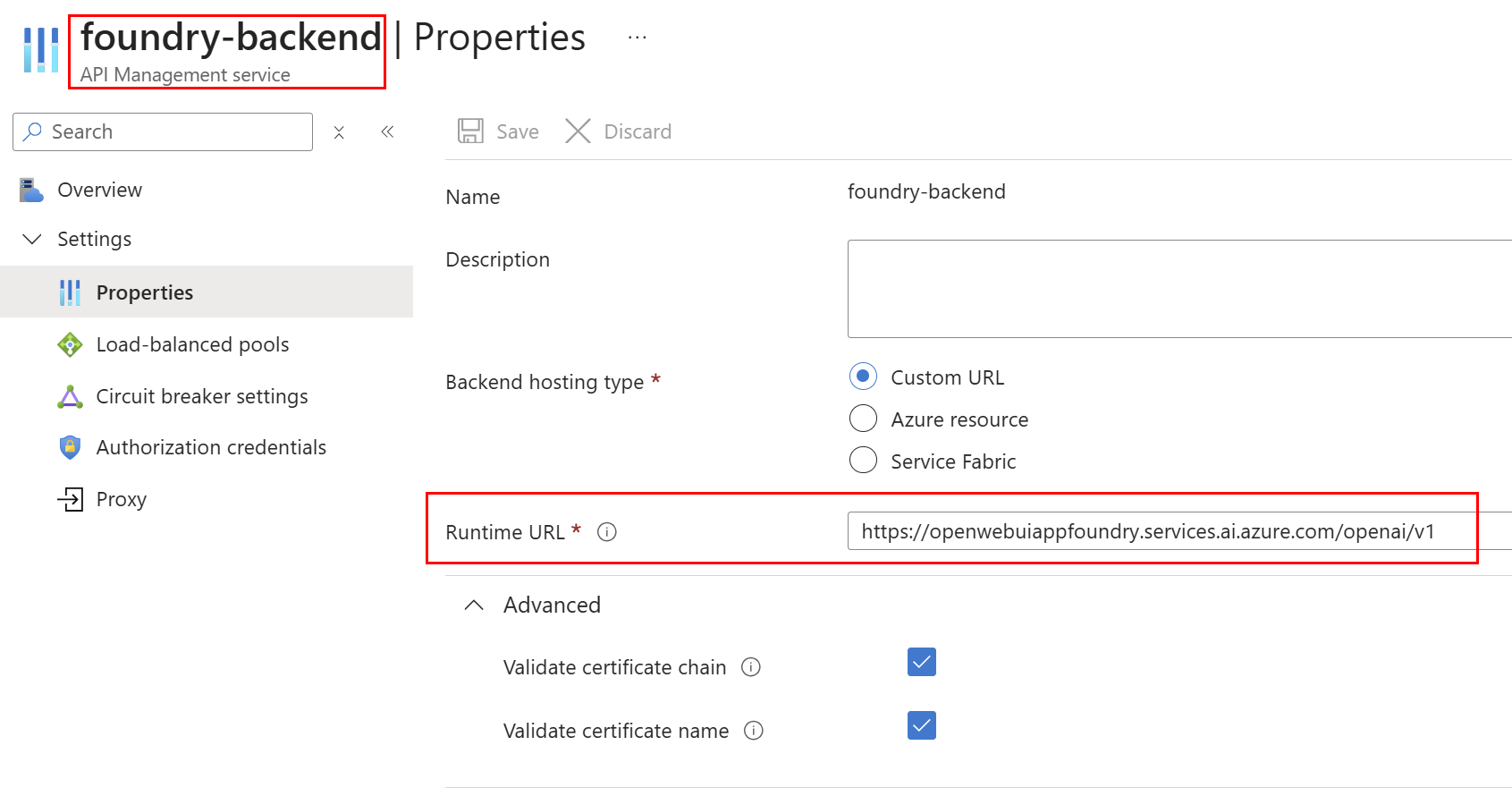
Azure API Management Config
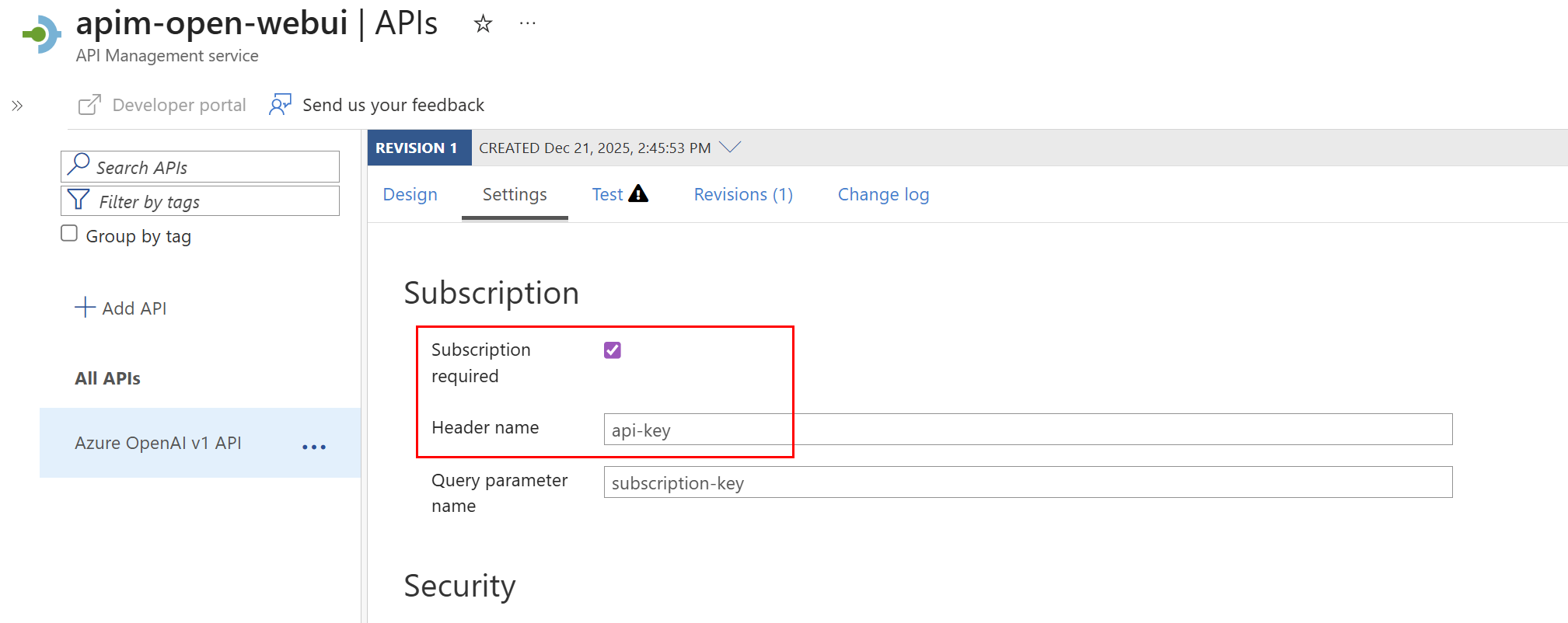
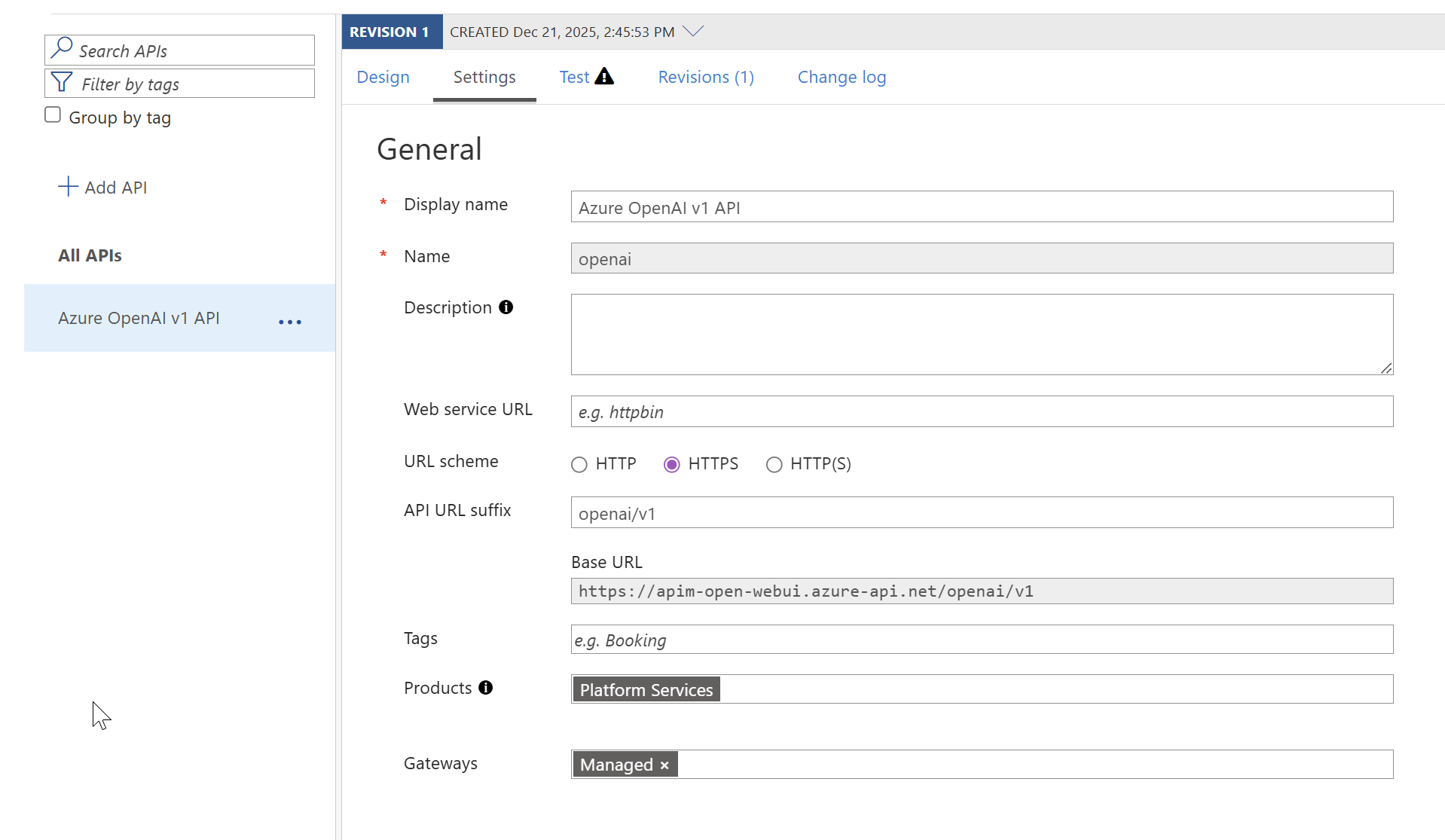
As you’ll likely already know, APIM can enforce a subscription requirement before an API can be accessed. You can even rename the header from the default Ocp-Apim-Subscription-Key to something more suitable, such as api-key. This subscription check happens, to the best of my knowledge, before policy evaluation at the gateway level. The key can be passed either as a header or as a query parameter.
Many guides online rely solely on this mechanism, but it’s important to understand that a subscription key on its own is not sufficiently secure. Because of that, I wanted to take my Open WebUI solution a step further by wrapping all calls from Open WebUI to APIM with OAuth, using the user’s Entra ID session login from within Open WebUI to validate access to the API calls.
Subscription enforced with custom header name for ease of use:
API URL Suffix to complete the openai/v1 endpoint construct that Foundry is expecting:
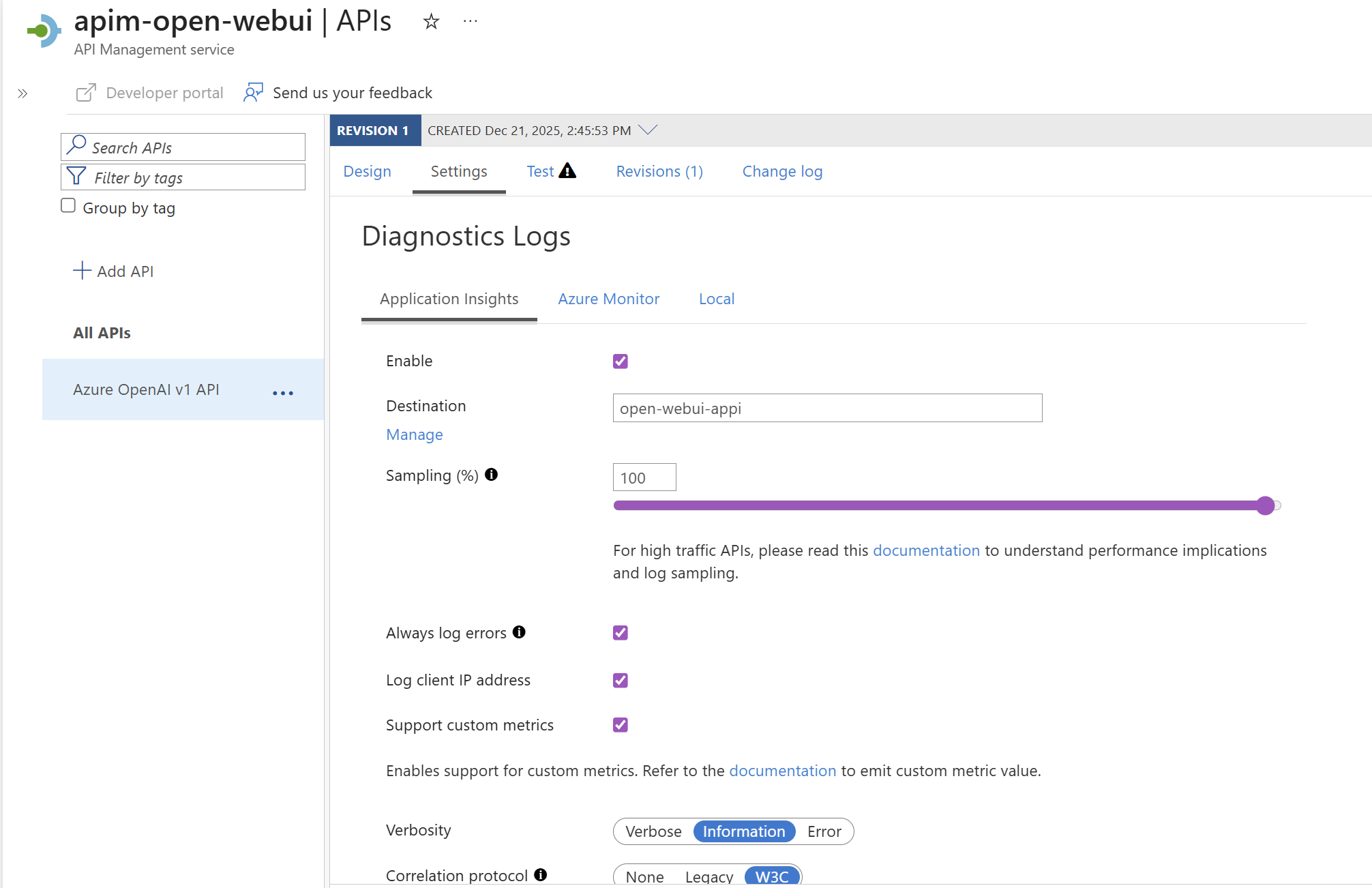
API level diagnostics turned on, connected to the Application Insights logger (via Managed Identity!) with support for custom metrics enabled:
APIM Policy Breakdown
Entra Validation
In Part 1, I showed how I deployed Open WebUI alongside an Azure App Registration that defines two app roles: admin and user. To grant access to Open WebUI, you need to assign an Entra security group, or an individual user, to the appropriate app role.
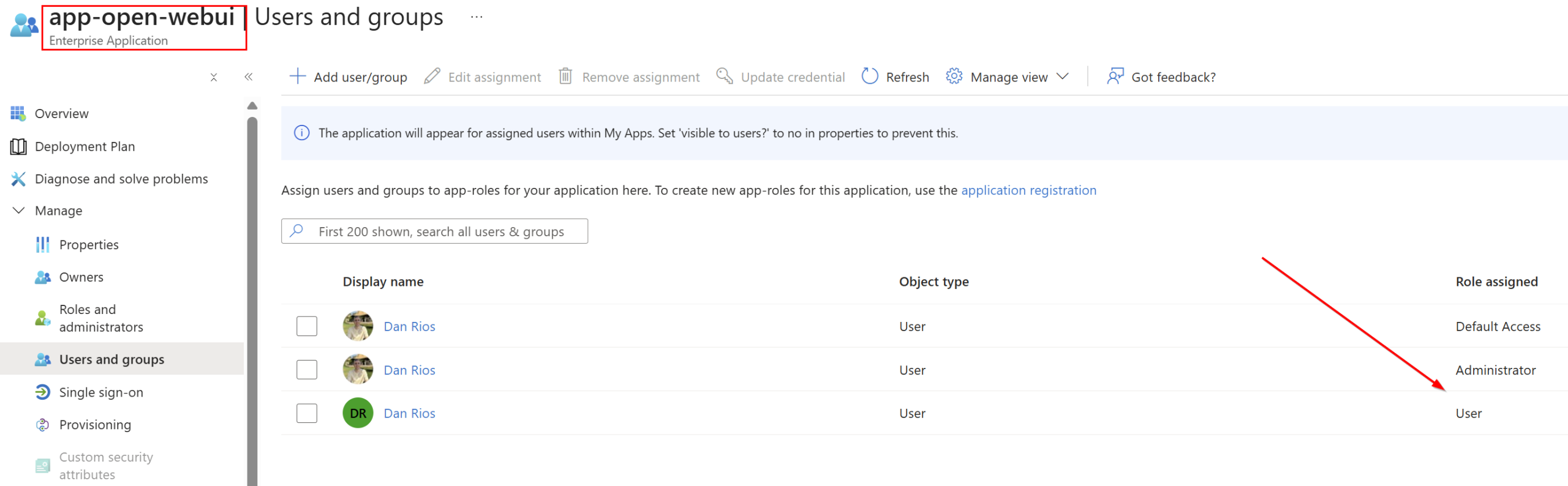
This allows you to control access to Open WebUI through Entra app roles, giving you granular control over who can sign in and with what role. It also enables you to validate the user’s OAuth session token when making calls to the Foundry backend, adding an essential security layer on top of the APIM subscription key in addition to validating the role claim.
If I inspect the bearer token (via a debugger like jwt.io) after logging into Open WebUI (which you can get from the browser dev tools -> local storage -> cookies), you can see it contains all the audience, issuer, role claims required to validate AI chat completion calls at the APIM gateway via policy. In my example, I’m logged in as an Entra‑synced admin user, and the token includes:
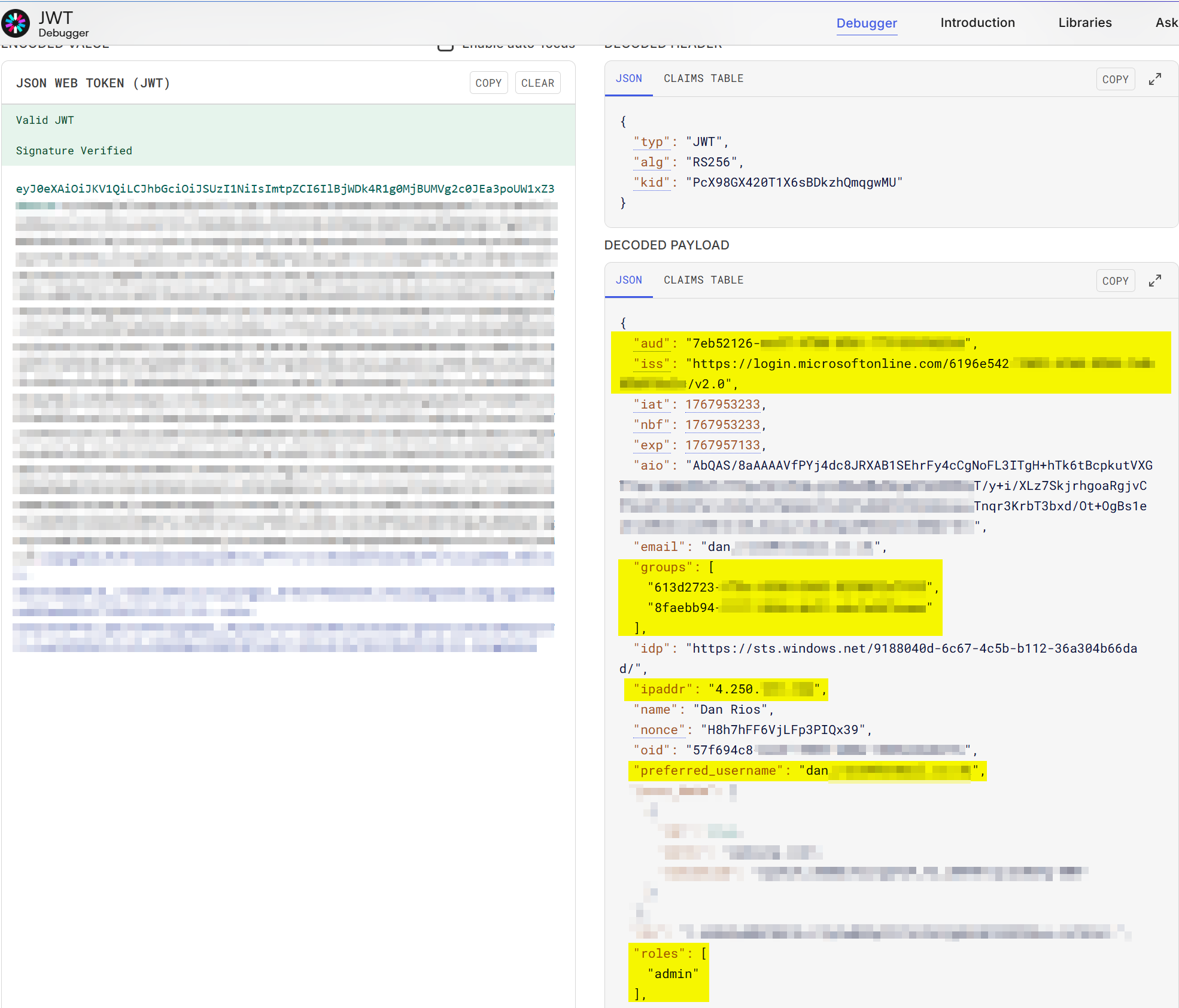
- aud: the App Registration’s Application (client) ID
- iss: my Azure tenant (v2 token endpoint)
- groups claims: used for Entra group syncing on login
- ipaddr claim: Used for Client IP custom metric tracking
- preferred_username claim: Used for User ID custom metric tracking
- roles:
admin
With this in place, APIM can validate not only the subscription, but also the OAuth user session, ensuring the caller has the correct claims and originates from the correct tenant before allowing chat completion requests to reach Foundry.
In this setup, the validate-azure-ad-token policy expression uses the tenant-id named value to check the v2 token issuer, confirm that the audience matches the Open WebUI Entra App Registration, and ensures the role claim matches one of the two defined roles:
<policies>
    <inbound>
        <base />
        <!-- Azure AD token validation - requires parOpenWebUIAppId to be configured -->
        <validate-azure-ad-token tenant-id="{{tenant-id}}">
            <audiences>
                <audience>{{openwebui-app-id}}</audience>
            </audiences>
            <required-claims>
                <claim name="roles" match="any">
                    <value>admin</value>
                    <value>user</value>
                </claim>
            </required-claims>
</validate-azure-ad-token>LLM Policy + Managed Identity
APIM also provides some really useful built‑in expressions for LLM workloads, allowing you to emit custom token metric dimensions and enforce token usage limits using a counter key (in my case, per user for the solution). In the first block, I’m exposing several custom token metrics so I can monitor data points that I think are valuable to track:
- Client IP address (using the ipaddr jwt claim)
- User ID (from the
preferred_usernamejwt claim) - Model – Associates which Model is being used in the request for custom model break down metrics through a variable (see below)
- Subscription ID – which APIM subscription was used
- API ID – which API handled the request
These metrics are surfaced in Application Insights through the diagnostic configuration applied to the API. For example, here’s a test chat completion request logged with my custom dimensions:
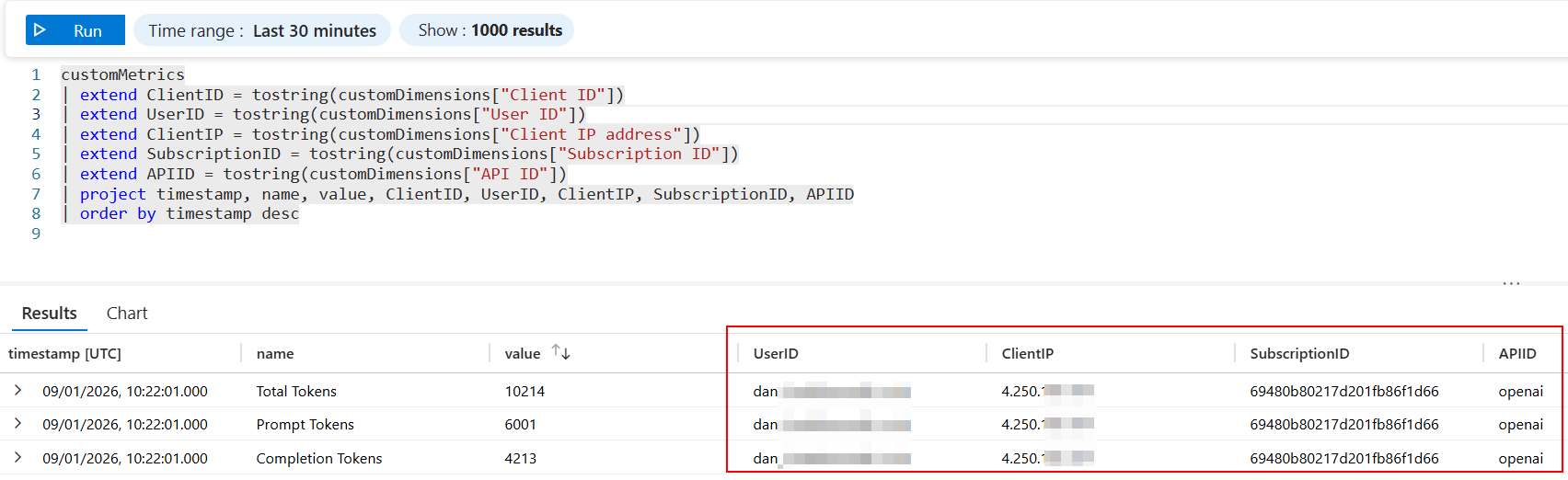
KQL:
customMetrics
| extend UserID = tostring(customDimensions["User ID"])
| extend ClientIP = tostring(customDimensions["Client IP address"])
| extend SubscriptionID = tostring(customDimensions["Subscription ID"])
| extend APIID = tostring(customDimensions["API ID"])
| project timestamp, name, value, UserID, ClientIP, SubscriptionID, APIID
| order by timestamp descPolicy snippet capturing the custom LLM metrics:
        <!-- AI Gateway: Emit token metrics for analytics -->
        <llm-emit-token-metric>
            <dimension name="Client IP address" value="@(context.Request.Headers.GetValueOrDefault("Authorization","").AsJwt()?.Claims.GetValueOrDefault("ipaddr", "unknown"))" />
            <dimension name="User ID" value="@(context.Request.Headers.GetValueOrDefault("Authorization","").AsJwt()?.Claims.GetValueOrDefault("preferred_username", "anonymous"))" />
            <dimension name="Model" value="@((string)context.Variables["model"])" />
            <dimension name="Subscription ID" />
            <dimension name="API ID" />
</llm-emit-token-metric>The final section covers limiting token usage per user. By using a counter‑key, I’m able to restrict token consumption based on my own custom context – and in this case, the user is the most appropriate fit IMO. APIM also allows you to expose useful information back to diagnostics or user through response headers, such as how many tokens were used and how many remain within their quota.
Additionally, the Foundry backend is configured as the target service (as covered earlier in the post), with backend requests authenticated via Managed Identity against the Cognitive Services scope. The Bicep deployment assigns the required RBAC role that allows APIM to authenticate to Foundry using its managed identity.
In the below snippet, I am getting the JWT Auth header and getting the preferred_username claim which will be the Users ID in Open WebUI which I can then limit tokens on a per user basis, e.g. each user gets 50k a minute limit and/or token usage per user.
        <!-- AI Gateway: Token rate limiting with prompt estimation -->
        <llm-token-limit tokens-per-minute="50000" estimate-prompt-tokens="true" counter-key="@(context.Request.Headers.GetValueOrDefault("Authorization","").AsJwt()?.Claims.GetValueOrDefault("preferred_username", "anonymous"))" tokens-consumed-header-name="consumed-tokens" remaining-tokens-header-name="remaining-tokens" />
        <set-backend-service backend-id="foundry-backend" />
        <authentication-managed-identity resource="https://cognitiveservices.azure.com" />
</inbound>Custom Model Metrics Logging
I wanted a way to view a breakdown of token usage per user, per model including tokens. This gives the ability to review which users are using which models and their token consumption per model, which can be useful to see which models are being heavily used and by which users are using the solution the most. I am capturing this by extracting the model details from the request body that hits APIM, then storing this as a custom metric from the APIM policy through a model variable:
<policies>
    <inbound>
        <base />
        <!-- Extract model from request body for custom metrics -->
        <set-variable name="model" value="@{
            var body = context.Request.Body?.As<JObject>(preserveContent: true);
            return body?["model"]?.ToString() ?? "unknown";
}" />Azure API Management – Diagnostics & LLM Analytics
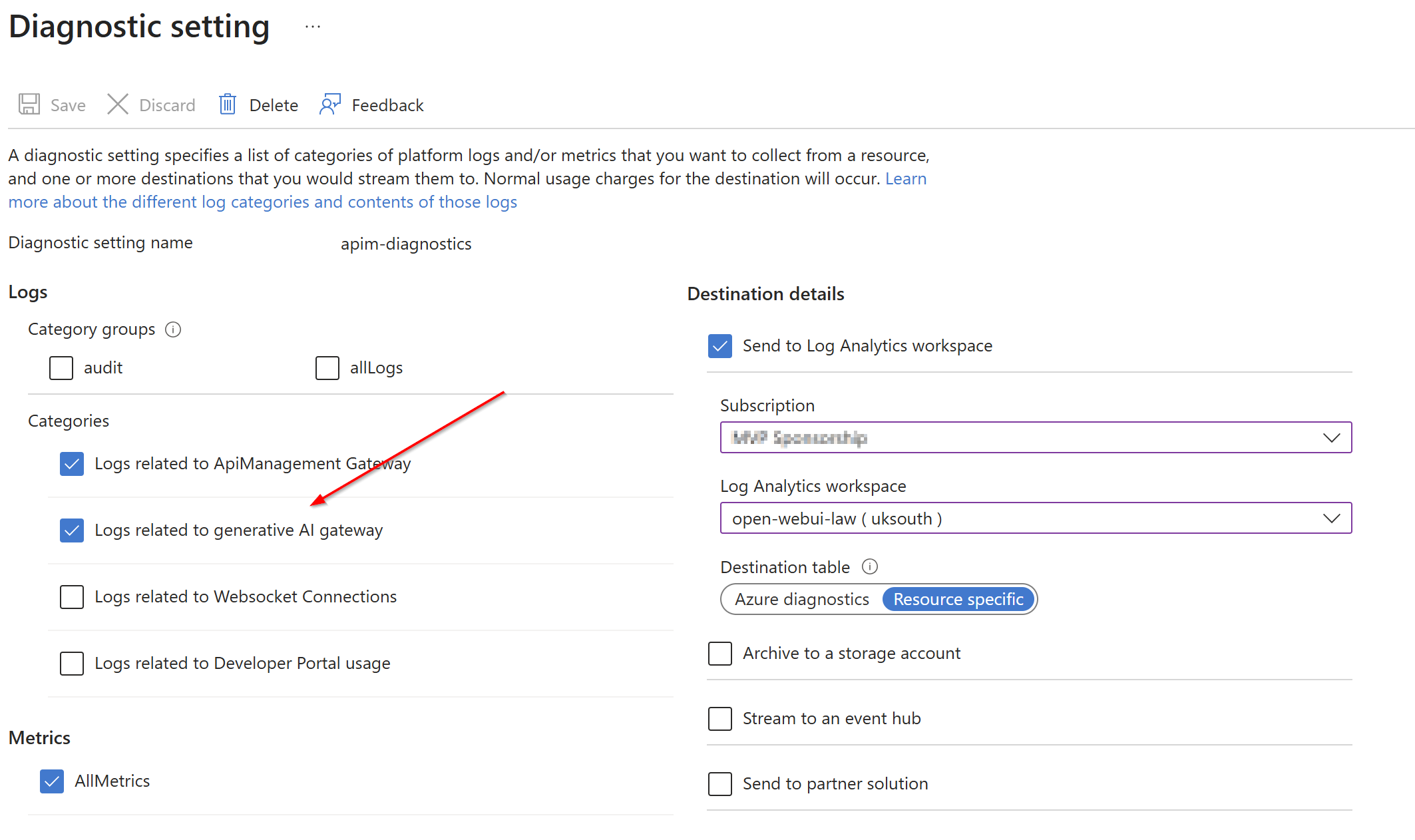
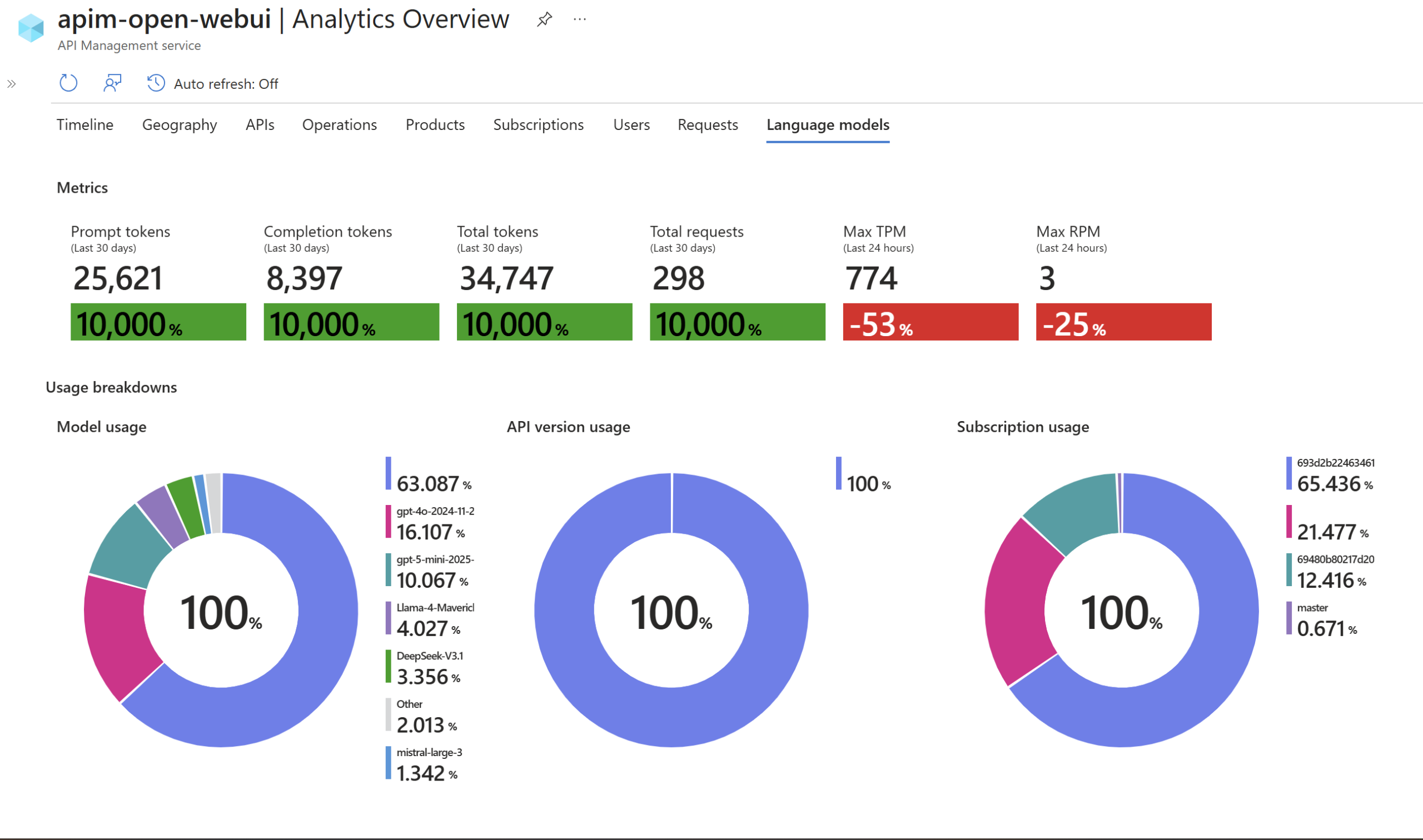
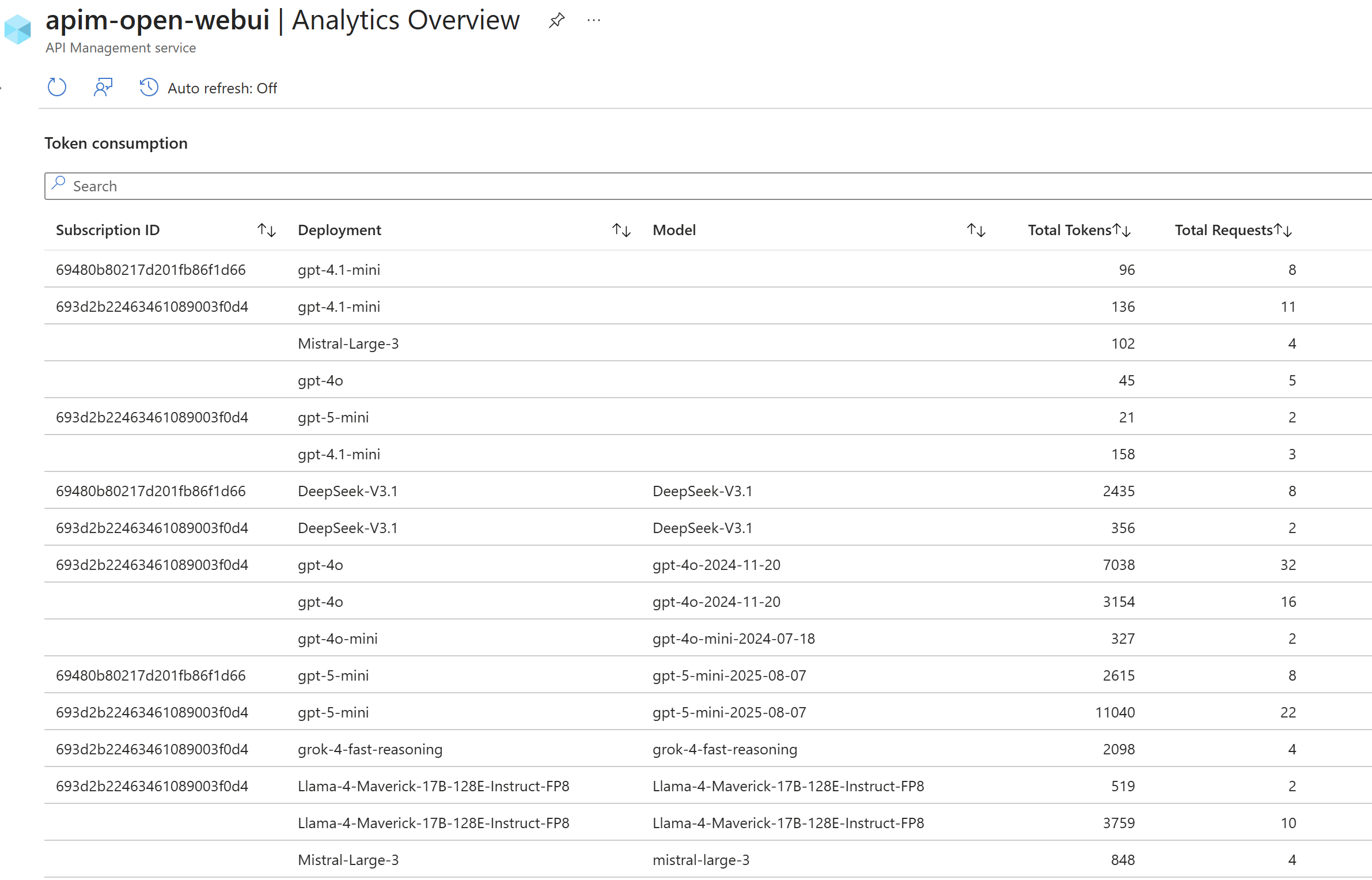
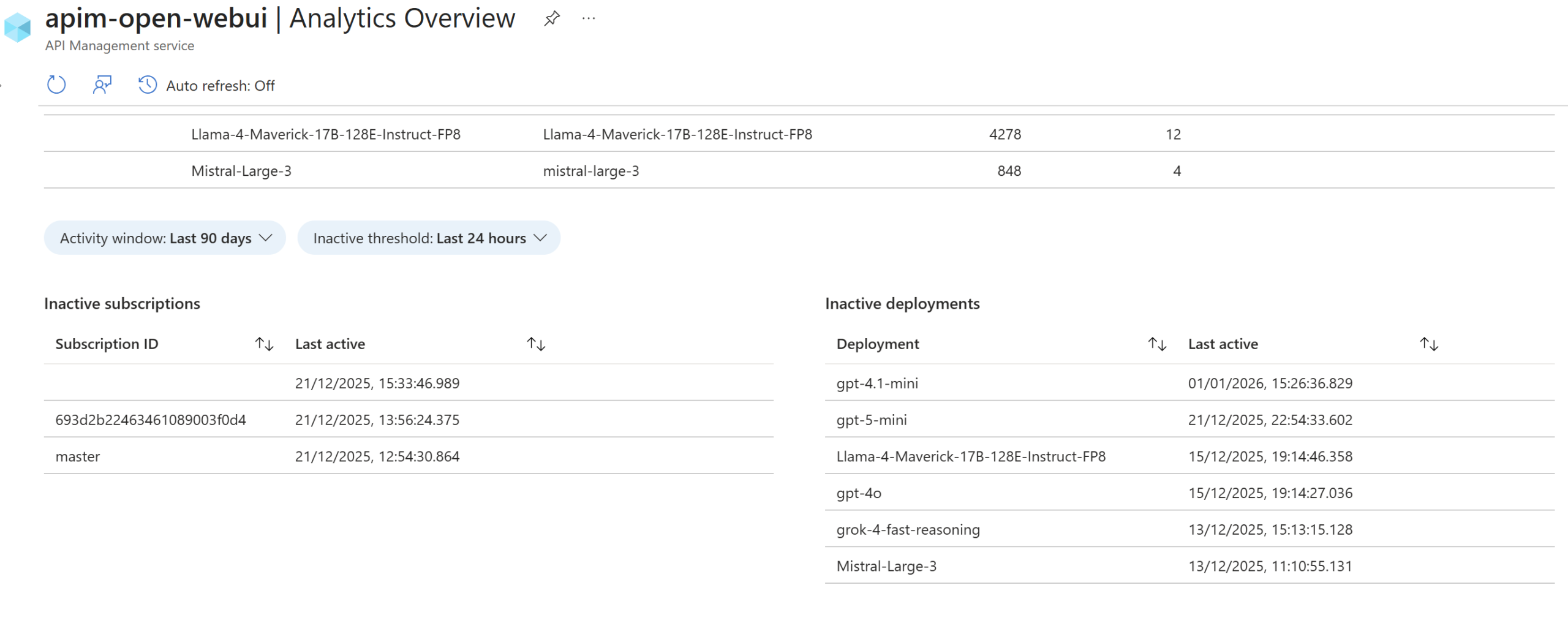
APIM diagnostics is nothing new, so I won’t go too deep into the general diagnostic features. More specifically, though, the “Logs related to generative AI gateway” diagnostic category is now built‑in and can be enabled to track analytics for LLM usage through APIM. Once this is turned on alongside the standard diagnostics, APIM will begin logging LLM‑specific data such as token usage per subscription, model usage, totals, and more. This provides a clean, single pane of glass view of AI gateway activity.
Once logs start to collect, the ‘Analytics -> Large Language Models tab’ dashboard under ‘Monitoring’ will show a nice view to observe usage:
Custom Metrics per User & LLM Usage Breakdown
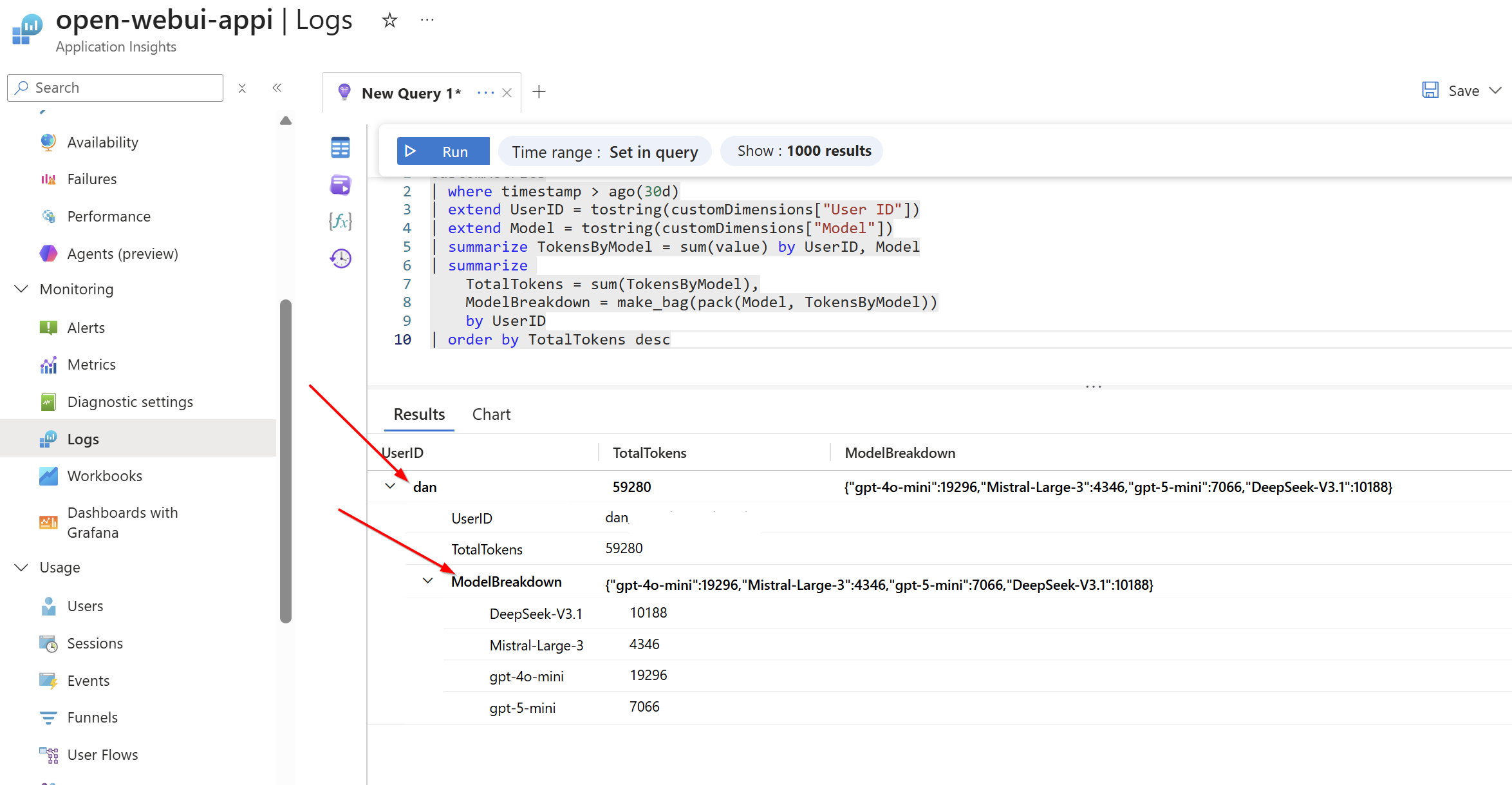
Since the APIM policy is collecting custom metrics, including User ID, Model, and token consumption data (as seen earlier in the post in the APIM policy). I can use a Kusto Query (from App Insights) to analyse usage patterns on a per-user basis. This provides detailed insights into which models each user is consuming the most, their total token usage, and request patterns, enabling cost tracking and usage optimisation:
customMetrics
| where timestamp > ago(30d)
| extend UserID = tostring(customDimensions["User ID"])
| extend Model = tostring(customDimensions["Model"])
| summarize TokensByModel = sum(value) by UserID, Model
| summarize
    TotalTokens = sum(TokensByModel),
    ModelBreakdown = make_bag(pack(Model, TokensByModel))
    by UserID
| order by TotalTokens descBreakdown view per user/model:
Why Put Azure API Management in Front of Microsoft Foundry?
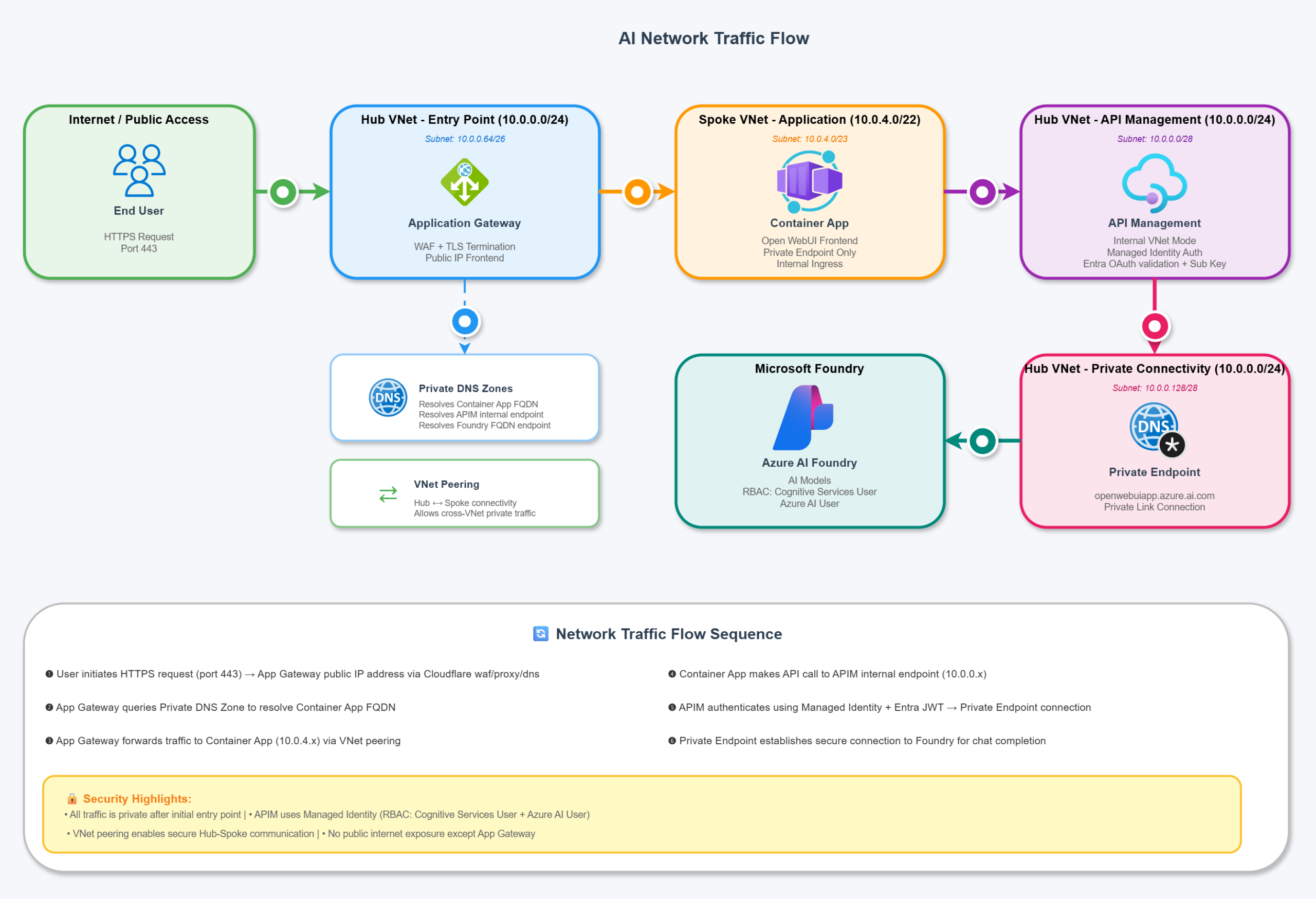
As shown in Part 1, and in the GitHub repository, I put together a diagram showing the traffic flow of an OpenAI request to Foundry via my Open WebUI on Azure solution. I think this really helps visualise why Azure API Management in front of Microsoft Foundry is so powerful.
By acting as our AI API gateway, I’m able to:
- Control authorisation with my parameters
- Capture custom metrics
- Gain enhanced logging capabilities
- Enforce LLM token limits (which can also support chargebacks, etc.)
- Future flexibility to route across multi-region and other capacity related scenarios
Going direct to Microsoft Foundry without Azure API Management in the middle means you lose all of these benefits and more:
Open WebUI Connections
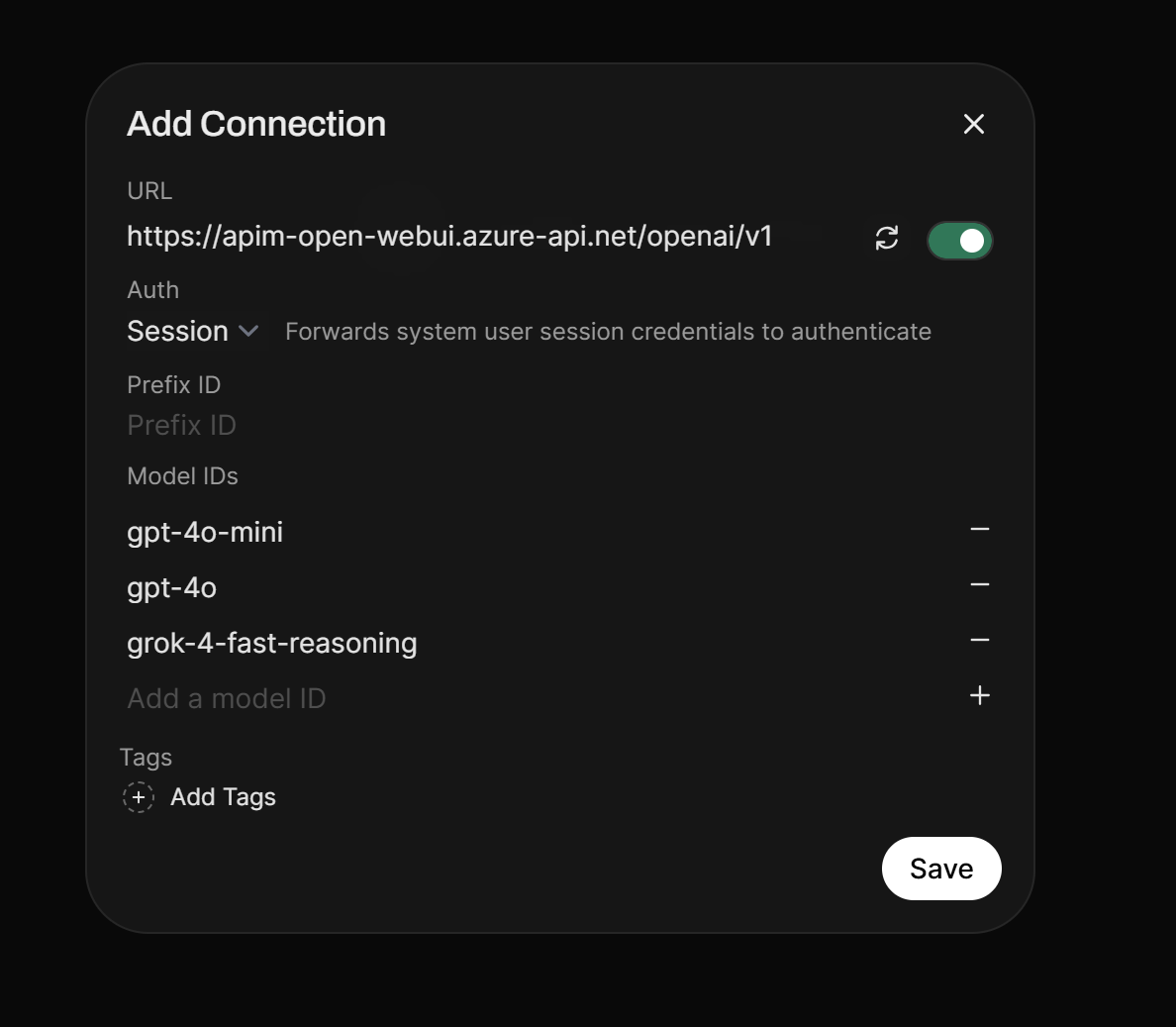
I am using a global OpenAI connection, configured under the admin control panel which is then available for all users. This connection in the admin panel for allows for custom headers, thus giving us the ability to call a subscription key + OAuth. You can allow users to setup their own OpenAI connection under their account but it won’t work with APIM (at least not without some unconventional workarounds).
The limitation with allowing Open WebUI users having the ability to create their own direct OpenAI connection is that (annoyingly) the connection is limited to Bearer, Session, and API Key (no customer headers). So, you cannot pass in a custom header, which APIM is going to enforce with a subscription header via api-key. The API Key mentioned in Open WebUI auth will be sent under the Authorization header, so it won’t work which is why I opt for a global OpenAI connection for all users and then limit usage by user rather than by subscription.
Missing headers for end users, so APIM integration is limited to a main subscription key with OAuth authentication (note: no headers config available):
Vs Admin connection setup for all users with headers setting:
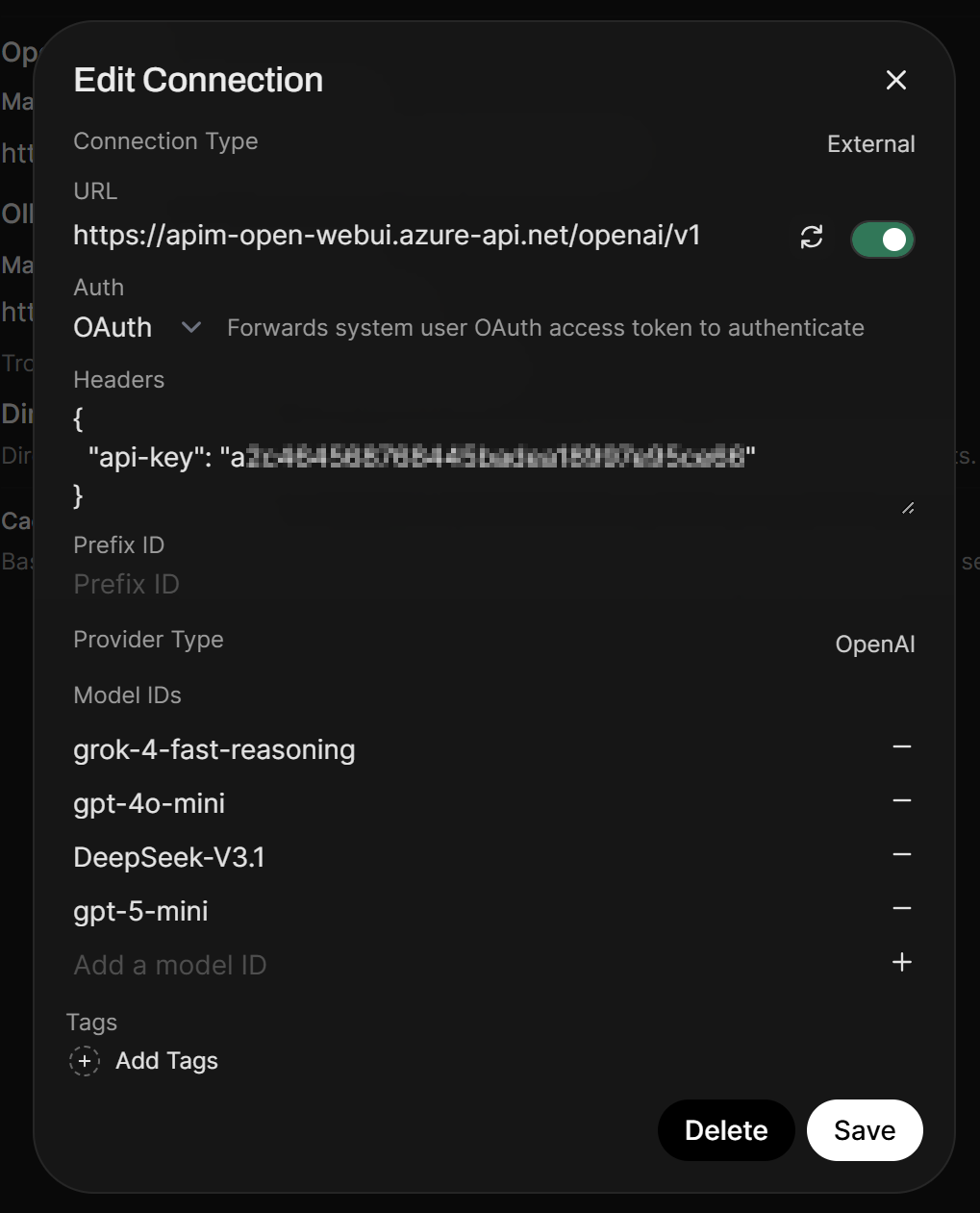
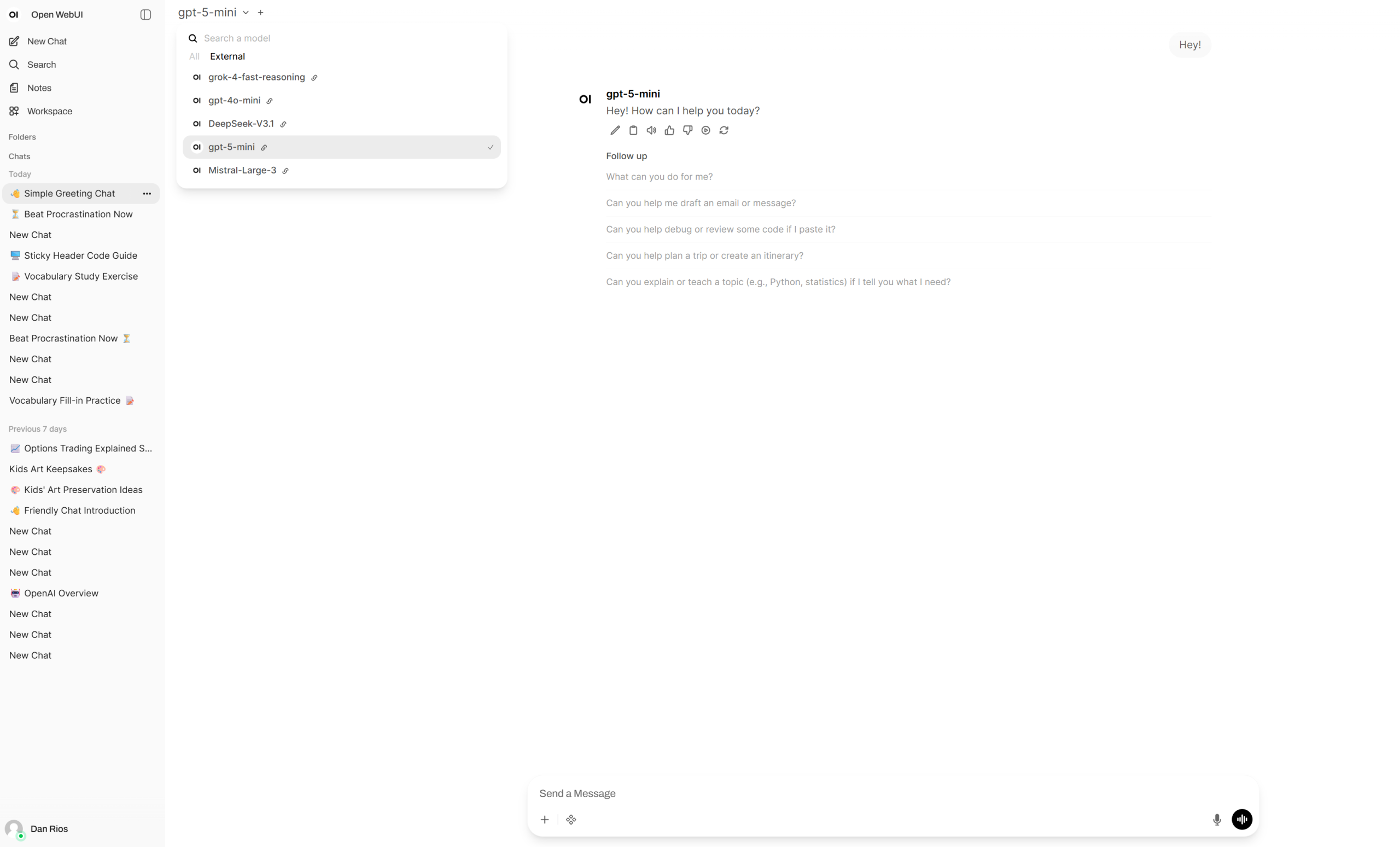
The upside here is that, as I am forcing all AI chat completions through APIM as my AI Gateway with custom metrics, I can still monitor usage not only by LLM, tokens, and inactive models, but also by user, as I am also capturing the preferred_username claim after login from Entra ID when users use the chats. This way, you’re still able to check per user and their metrics like mentioned above.
Closing thoughts
Thanks for making it this far! There’s a lot to cover in this space, and I’ve probably missed a few elements along the way. I’m hoping the GitHub repo will help fill any gaps through the code and the README. With Open WebUI running in Azure, I hope I’ve given enough guidance for anyone exploring this approach, whether for internal business use or as a personal project, to better understand how the various AI components fit together to form a solid, secure solution with a focus around APIM being the central ingress gateway for all AI activity for enhanced control, auth and metrics.
If you’re building something similar in Azure, or have any questions, feel free to drop them in the comments.
Hello Dan Rios,
You are doing a great job 🙂 , I read your posts they are really helpful..
I am trying to secure MCP tools hosted in azure APIM and connect to azure open web ui.. do you think this will be possible.
So idea is:
Objective : Connect Open web ui to MCP tool hosted in Azure APIM.
1) Automatic list Azure APIM MCP tools in open webui.
2) While chatting select tools to communicate with
3) User claims should automatically passed which accessing the tools.
4) At APIM the policy should be applied to validate those claims , permissions etc wrt user..
Just wanted to check with you do you think this will be possible?
Thank you Ajay!
This sounds interesting and cool. It should totally be doable; you can already secure MCPs behind OAuth with Entra in APIM (https://learn.microsoft.com/en-us/azure/api-management/secure-mcp-servers#token-based-authentication-oauth-21-with-microsoft-entra-id) so the same session token and subscription header can be used to authenticate to the APIM MCP list which you would setup in the admin CP of Open WebUI the same way I am doing this for the models via APIM. As you allude to, you can give different users different claims for those tools, you add them to the app role/scope you expose. You can then validate via the APIM policy if they can have access to that MCP tool or not through the claim validation with a custom reply error message if they don’t.