
Contents
Introduction
I’ve covered using APIM with Foundry models before, so I wanted to see what Microsoft’s dedicated Azure AI Gateway offers. It has its own portal, model aliases, MCP tooling and usage controls.
In this walkthrough, I’ll deploy it with Bicep, connect Foundry and an MCP server, then check the traffic and token limits in the logs.
At Ignite Microsoft announced that AI Gateway is now GA whilst I was writing with expanded region coverage.
Azure AI Gateway
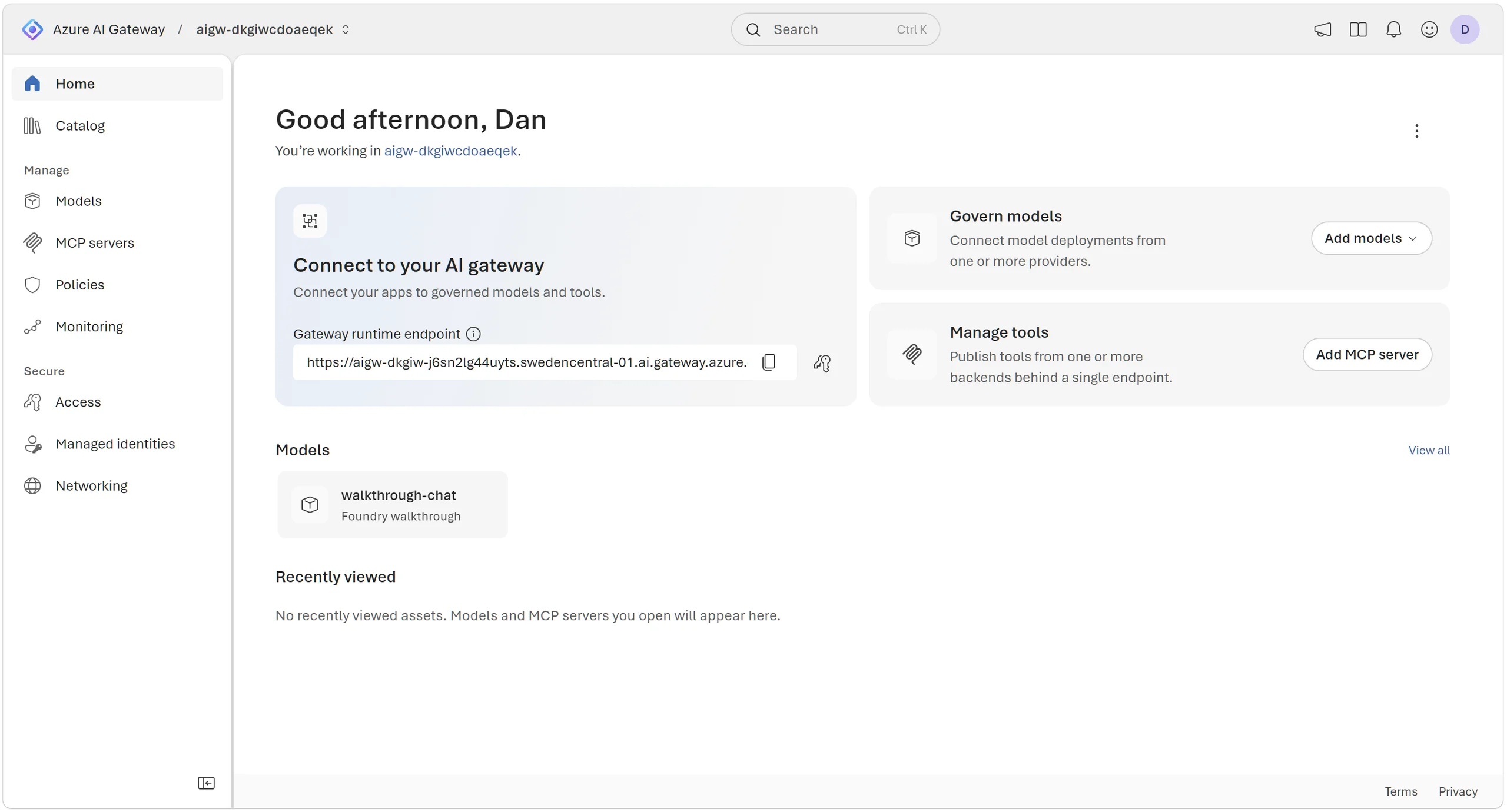
This is a Microsoft.ApiManagement/aigateways resource with its own portal, under the existing API Management resource provider.
You publish models and tools, control who can call them, apply limits and see the usage in one place. Applications call a model alias, so you can swap its backend without changing the model name in every application.
AI Gateway or APIM?
APIM already supports model endpoints, MCP, managed identity and token limits. The appeal here (from what I can tell) is managing models and tools directly, with their access, spend controls and request traces together. There are no gateway capacity units to size either.
Microsoft positions AI Gateway as the main home for its newest AI gateway features. Existing APIM AI capabilities remain supported, though. You don’t need to bin a working APIM setup because this exists.
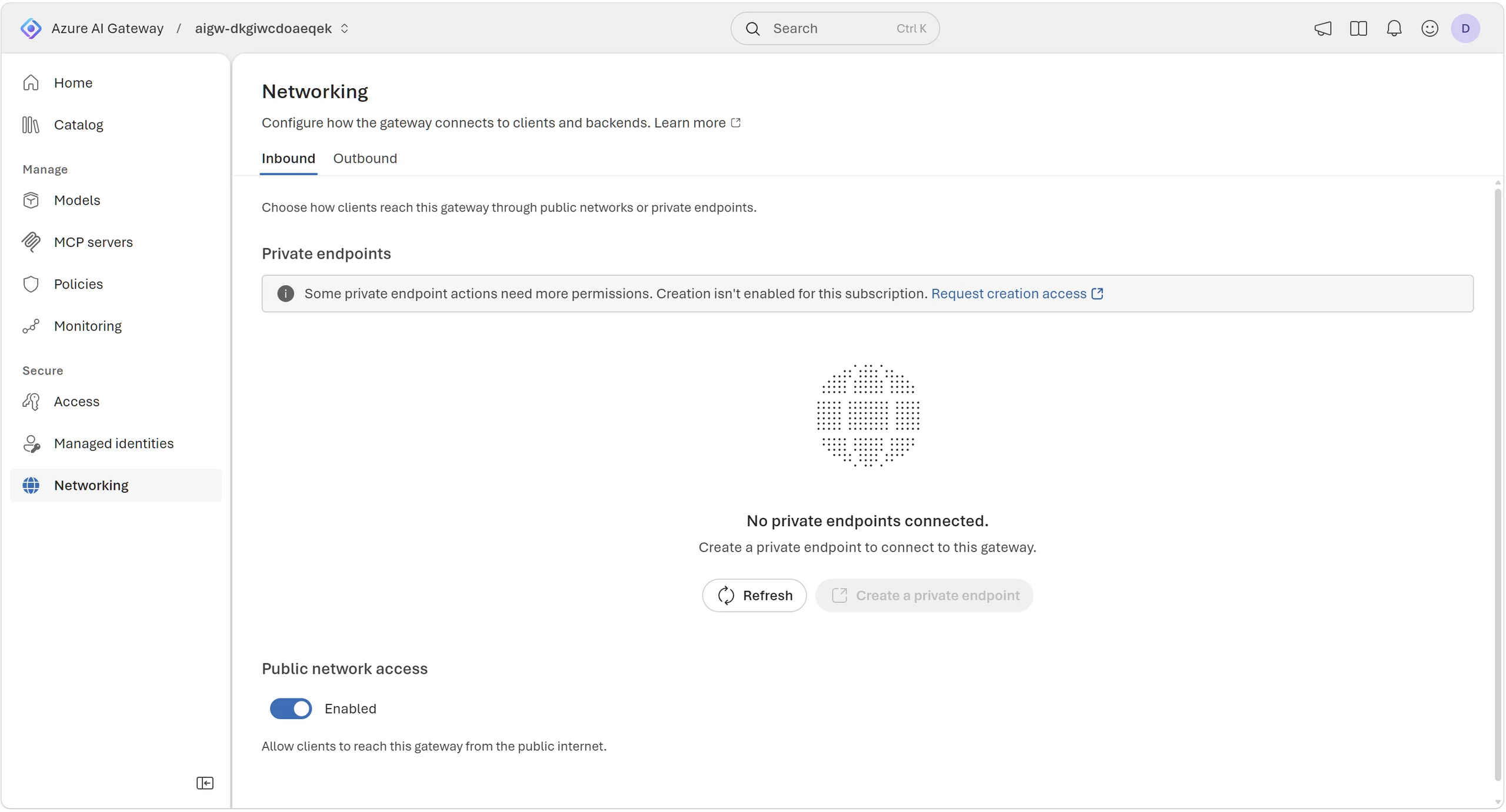
Private Link and outbound VNet integration are still preview features in AI Gateway, which matters if your rollout requires GA networking so if that is a blocker, APIM will be the choice for you.
The biggest differentiator I could see myself from a feature point of view was AI Gateway has a built-in policy for estimated monetary spend per caller (screenshot further down in the blog). APIM has token/request quotas, but its documented policy catalogue has no equivalent monetary budget policy.
I think this links to my assessment at the end of the blog where I think we’ll see a lot more native AI features going to AI Gateway vs APIM in the longer haul (pure speculation though).
Architecture
I’ve deployed the gateway in Sweden Central, a Foundry account with gpt-4.1-mini, and Application Insights with Log Analytics. Microsoft Learn provides the MCP example.
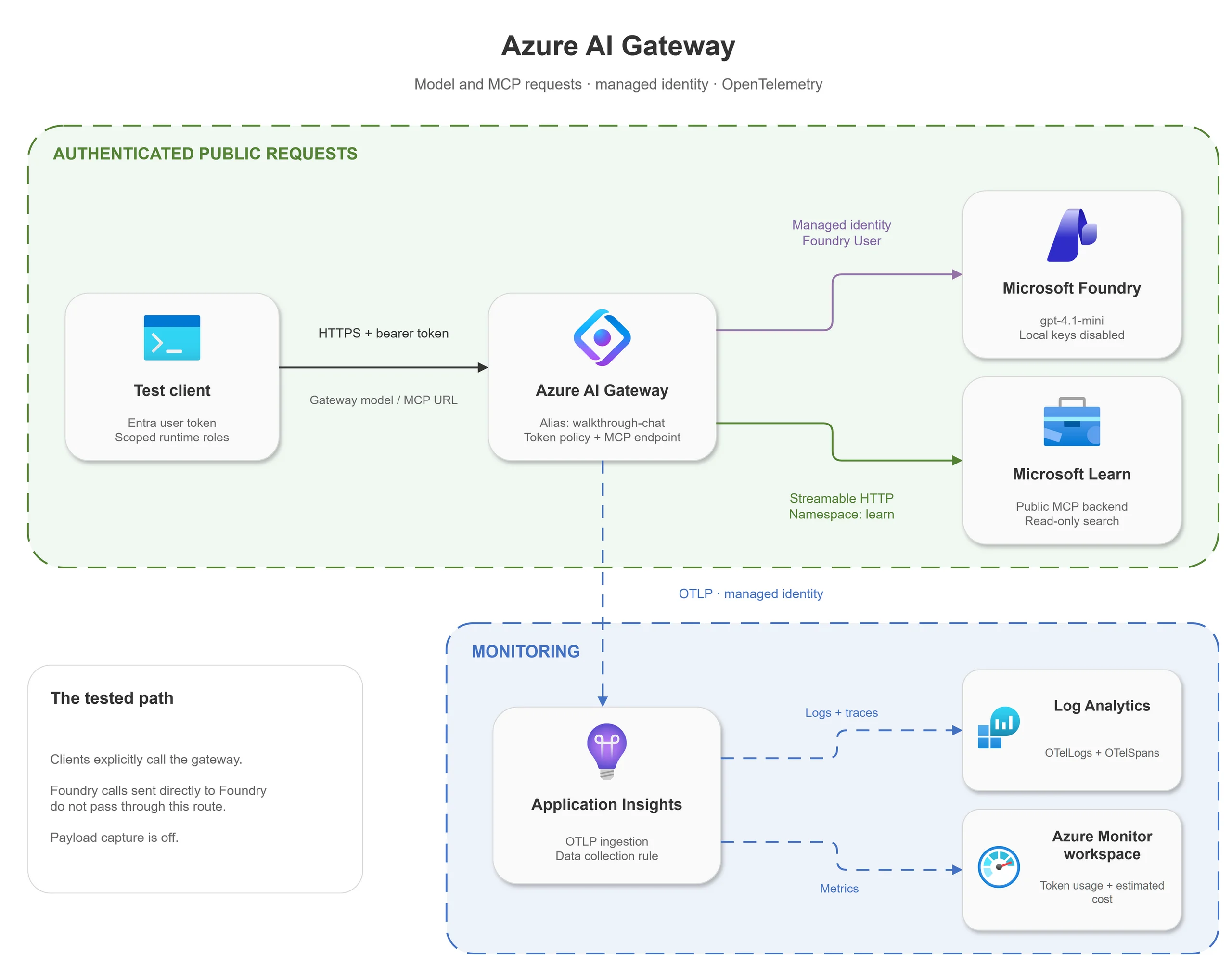
The client authenticates to the gateway with Entra ID. The gateway uses its own managed identity to call Foundry and export telemetry, with separate permissions for each.
For the calls here, the application uses the gateway endpoint. Registering a model doesn’t intercept requests sent directly to Foundry. Both endpoints use public networking with authentication.
Association doesn’t stop someone calling Foundrty directly
This is a key distinction. My interpretation of the docs was that once you associated an AI Gateway with Foundry, it would block calls directly to Foundry, but it doesn’t. I saw the same with the old APIM association — even with private networking configured, I could still call Foundry directly from a client with the required access.
To lock down the network side, give Foundry a private endpoint, disable its public network access and reach it through AI Gateway’s outbound VNet integration (still in preview though…). You’ll need to restrict other access to that private endpoint too. Making it private doesn’t mean only the gateway can reach it. See Microsoft’s backend networking walkthrough.
RBAC is another option: disable Foundry keys, give the gateway identity permission to call the backend models and remove that permission from your application identities. They get access to the gateway instead. But…. keep an eye out for inherited permissions here.
Bicep configuration
Here’s the Bicep gateway resource with its system-assigned identity:
resource gateway 'Microsoft.ApiManagement/aigateways@2026-09-01-preview' = {
  name: gatewayName
  location: location
  tags: tags
  identity: {
    type: 'SystemAssigned'
  }
  properties: {}
}
Here’s the AVM Bicep for Foundry:
module foundry 'br/public:avm/res/cognitive-services/account:0.19.1' = {
  name: 'foundry'
  params: {
    name: foundryName
    location: location
    tags: tags
    kind: 'AIServices'
    sku: 'S0'
    customSubDomainName: foundryName
    allowProjectManagement: true
    managedIdentities: { systemAssigned: true }
    disableLocalAuth: true
    publicNetworkAccess: 'Enabled'
    networkAcls: { defaultAction: 'Allow' }
    deployments: [{
      name: 'gpt-4.1-mini'
      model: {
        format: 'OpenAI'
        name: 'gpt-4.1-mini'
        version: '2025-04-14'
      }
      sku: { name: 'GlobalStandard', capacity: 10 }
    }]
  }
}
Foundry keys are disabled as managed identity / Entra authentication should be your defaults. The AI gateway’s managed identity gets Foundry User on the Foundry account.
Networking
Microsoft lists 17 regions at GA, including UK South and Sweden Central. Which is a lot more than the two they had in public preview.
A bigge for me though is that Private Link and outbound VNet integration are still in preview. So if that’s a concern for you then you’ll have to continue with APIM.
Connecting Foundry
In the portal, navigate to Models → Add → Models from Microsoft Foundry. Select the account containing your deployments, use Managed identity → System-assigned managed identity, and leave Create an alias for each model selected.
This registers existing Foundry deployments. I’ve deployed gpt-4.1 mini for the walkthrough because it always has plenty of availability.
Here’s the managed identity configuration for the Foundry provider:
authentication: {
  managedIdentity: {
    resource: 'https://cognitiveservices.azure.com/'
  }
}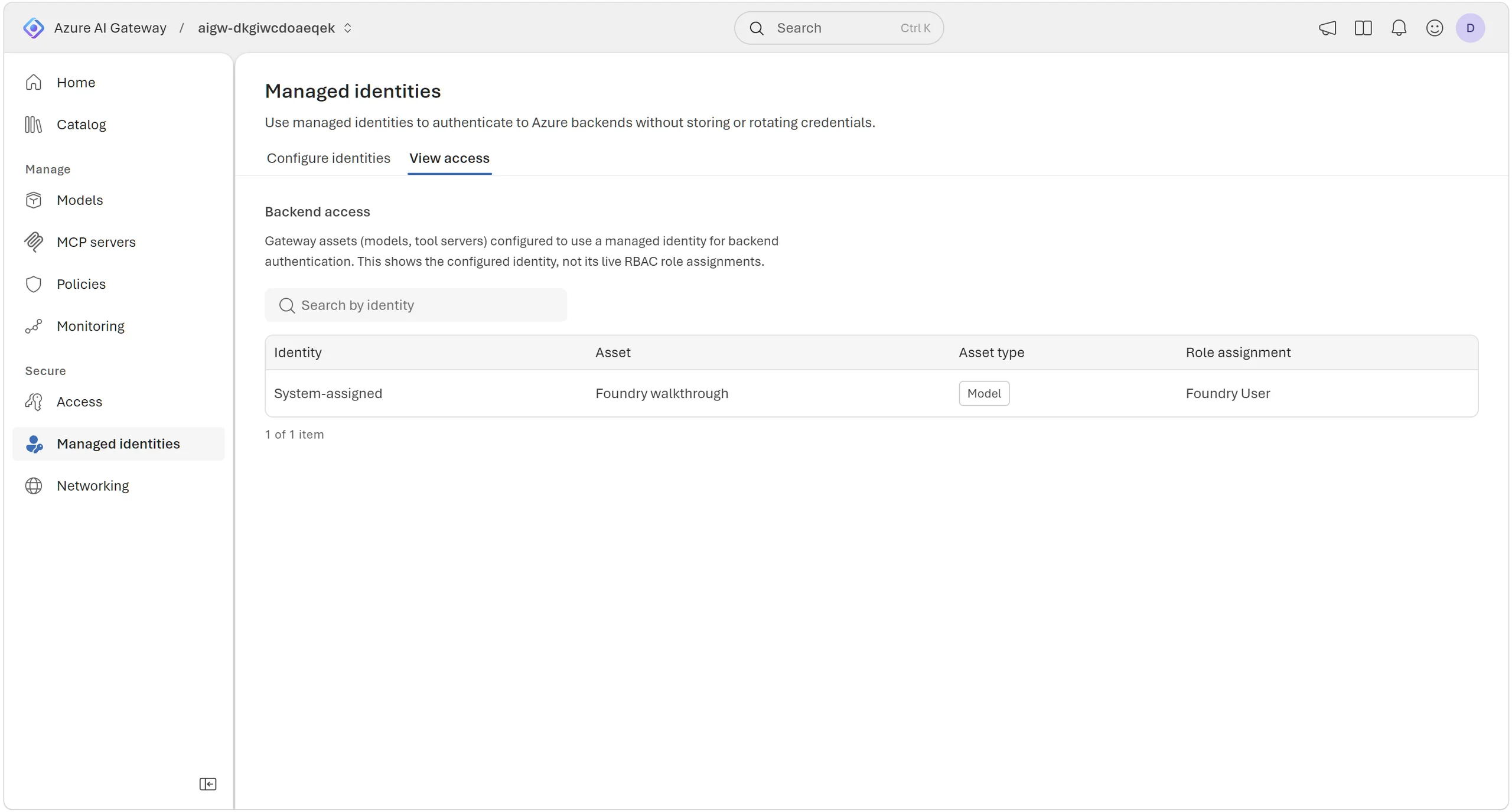
My test caller has AI Gateway Models User on the alias and AI Gateway Tools User on the MCP server. FYI, Reader alone won’t let you call either.
Other model providers
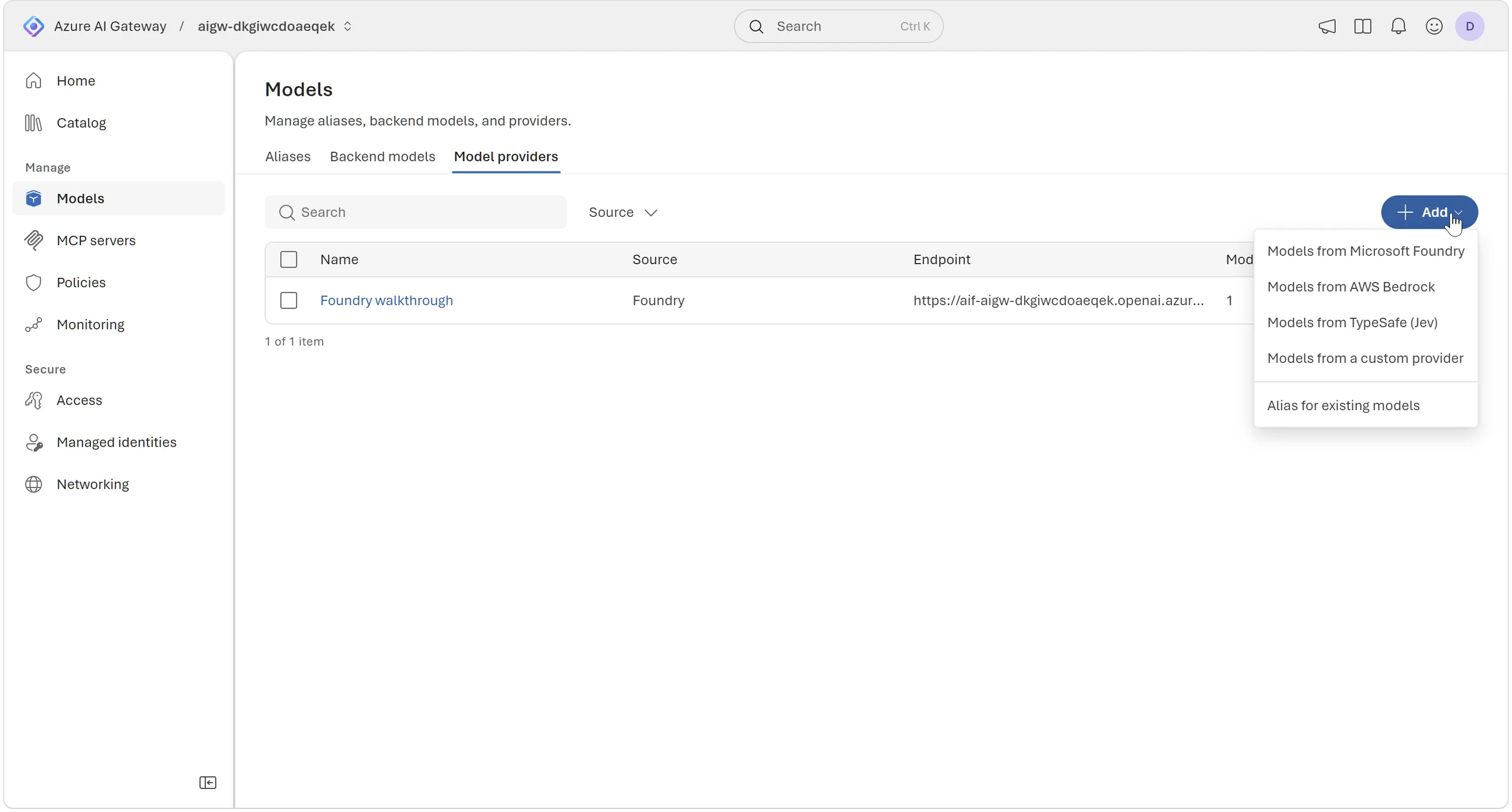
Foundry isn’t the only option here, btw. Under Models → Model providers → Add, there are options for AWS Bedrock, TypeSafe (Jev) and a custom provider too. I’ve used Foundry for this walkthrough, but you can bring models from other providers into the same gateway.
Policies
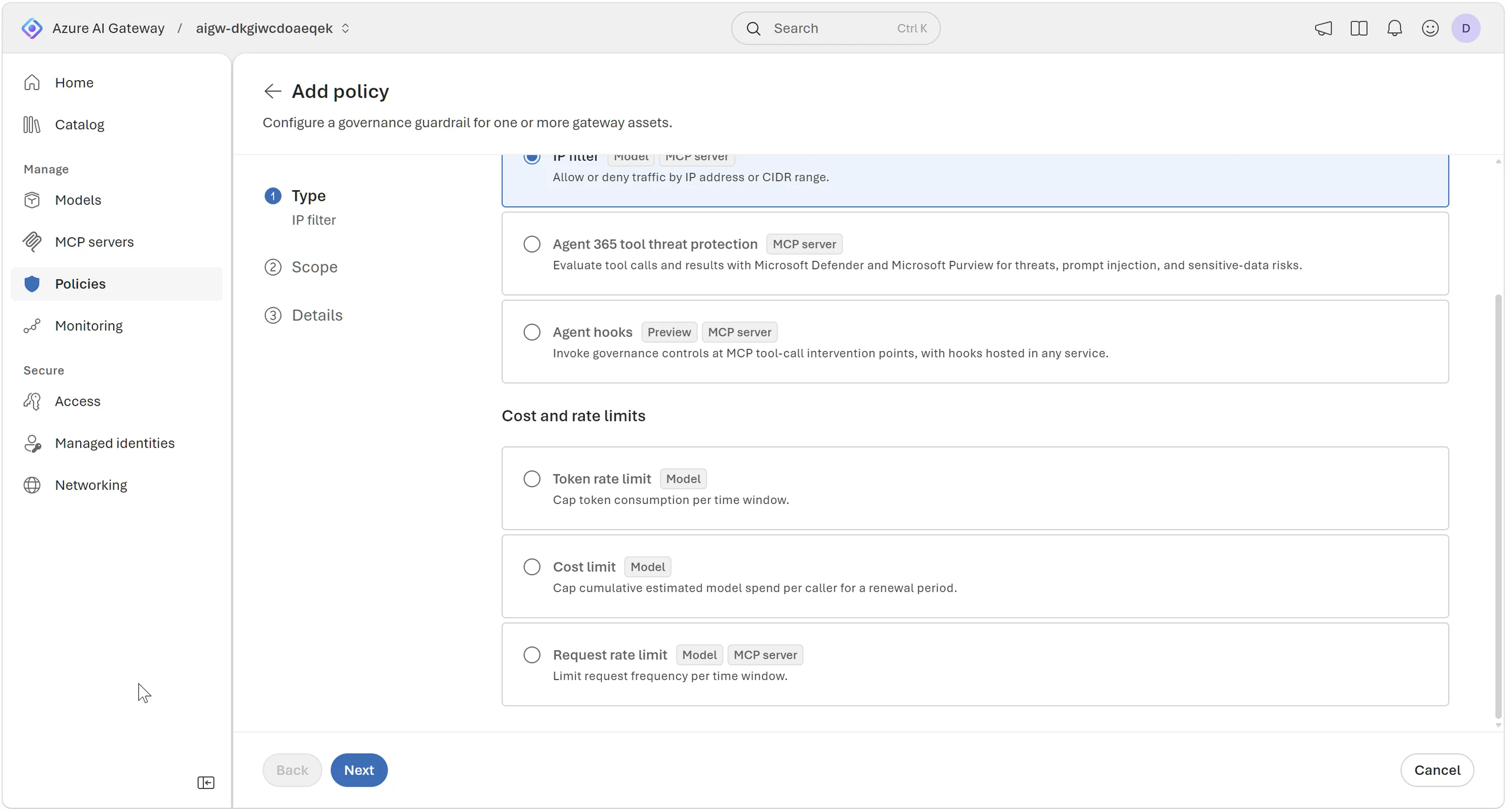
Head to Policies → Add policy. There are a few options here: token and request rate limits, IP filtering and cost limits based on estimated model spend. The badges show whether each applies to models, MCP servers or both.
For MCP servers, there’s also Agent 365 tool threat protection and Agent hooks, both currently in preview.
Token limits
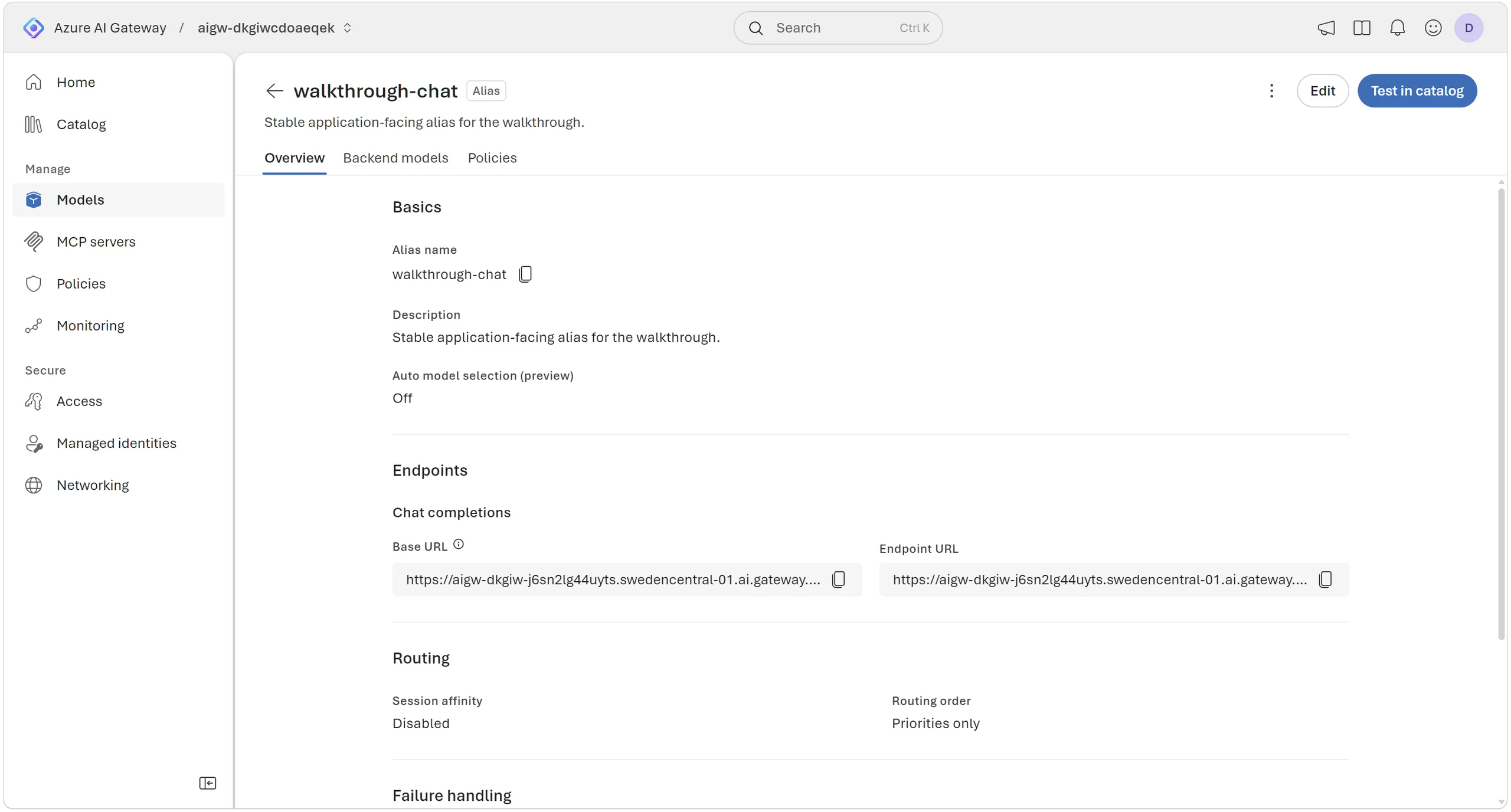
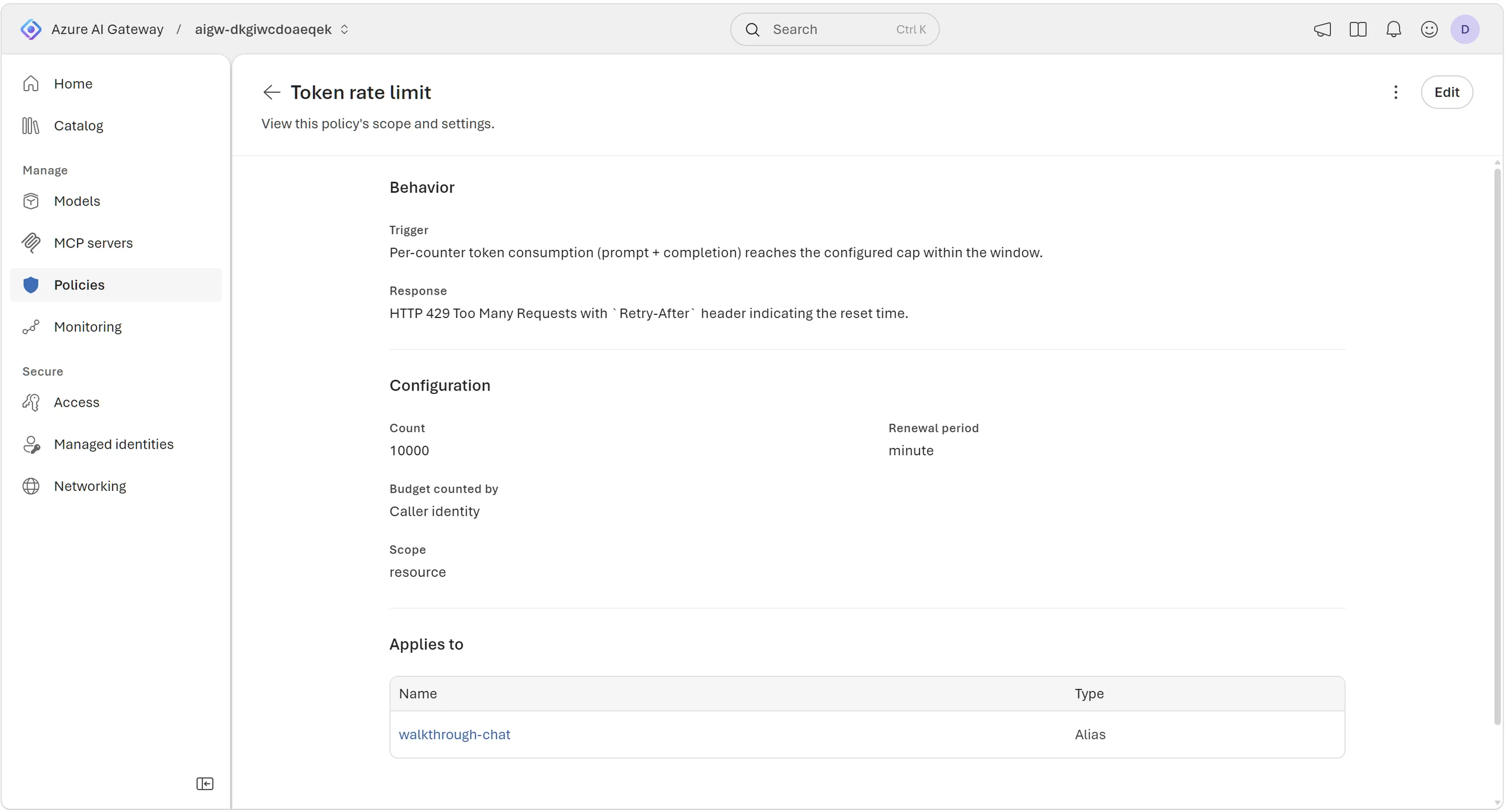
I’m using Token rate limit for this blog walkthroguh. Select the alias under Scope, then set the allowance under Details. Here’s the alias configuration in Bicep:
aliasName: 'walkthrough-chat'
backendModels: [{
  resourceId: model.id
  priority: 0
  weight: 100
}]
policies: [{
  id: 'walkthrough-tokens'
  type: 'tokenLimit'
  period: 'minute'
  count: 10000
  counterKey: ['identity']
}]
With counterKey: ['identity'], each authenticated caller gets a 10,000-token allowance per minute. You can edit the same settings in the portal without digging through policy XML.
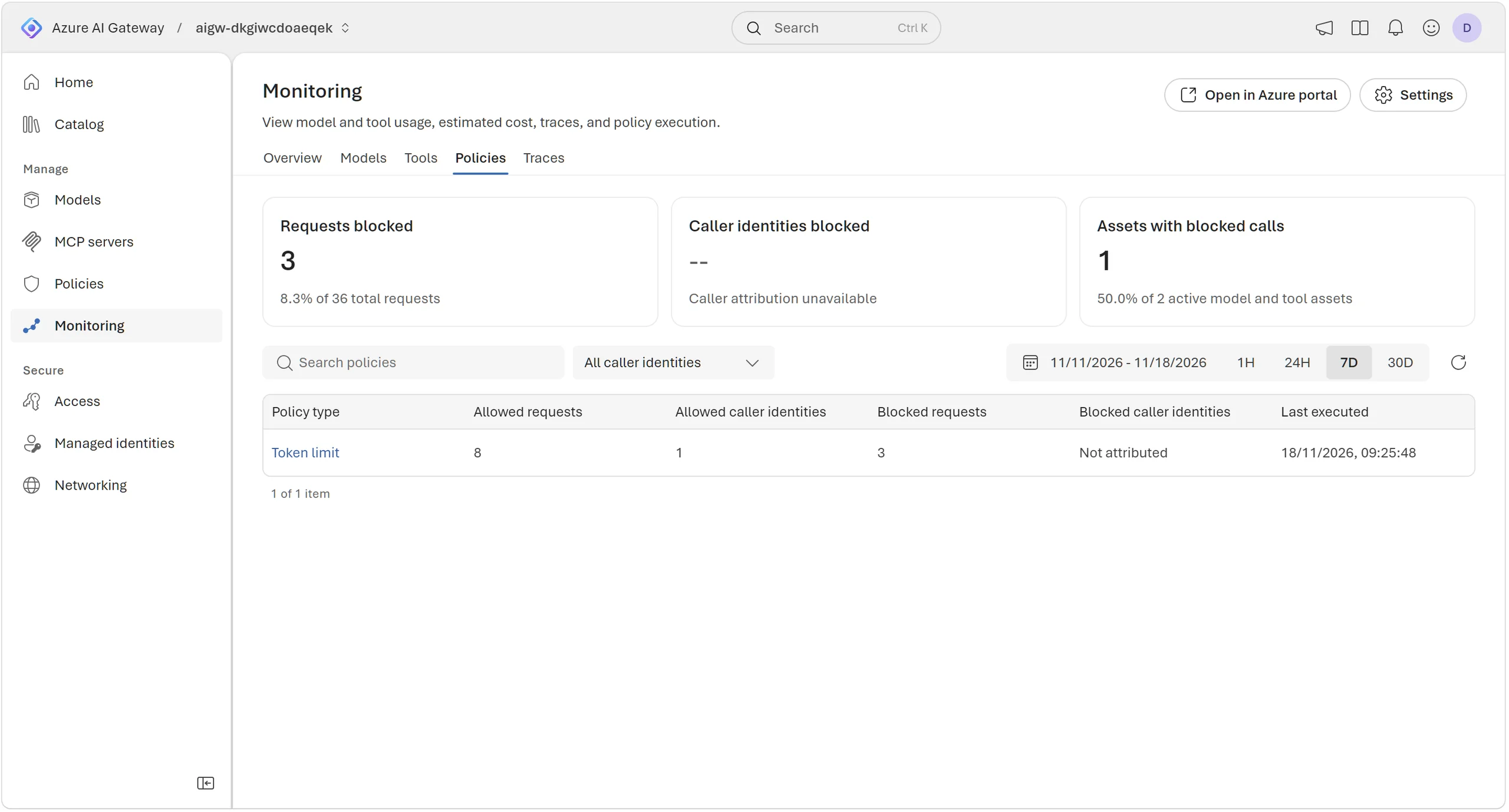
For the enforcement test, I set a one-token/minute limit. The first call used 15 tokens; the next returned 429. Its trace showed OpenAITokenLimitExceeded in the token policy and no backend call.
One gotcha: putting the limit back to 10,000 didn’t immediately clear the backoff. The rejection included Retry-After, and a later request succeeded with the restored policy.
In action
Copy the full Chat Completions URL from the alias. With Azure CLI signed in as a caller with the model role:
$chatUrl = '<Chat Completions URL from your alias>'
$token = az account get-access-token `
  --subscription '<your-subscription-id>' `
  --scope 'https://ai.gateway.azure.com/Data.All' `
  --query accessToken -o tsv

$body = @{
  model = 'walkthrough-chat'
  messages = @(@{ role = 'user'; content = 'Reply with exactly: Gateway OK' })
  max_tokens = 16
  temperature = 0
} | ConvertTo-Json -Depth 5

Invoke-RestMethod -Uri $chatUrl -Method Post `
  -Headers @{ Authorization = "Bearer $token" } `
  -ContentType 'application/json' -Body $body
The response was Gateway OK, with 13 input tokens and two output tokens. I also checked streaming and the failure paths:
| Request | Result |
|---|---|
| Valid Entra token and alias | 200, model response |
| Streaming request | 200, completed stream and token usage |
| Missing or invalid token | 401 |
| Unknown alias | 404 |
| Token allowance exceeded | 429, blocked before the backend |
Runtime API keys grant gateway-wide access. I used scoped Entra roles for these calls.
MCP tools
Under MCP servers, I registered the public Microsoft Learn MCP endpoint, with Streamable HTTP and a learn namespace.
Initialisation, tool discovery and a documentation search all worked through the gateway’s MCP endpoint. Discovery returned three tools, including learn_microsoft_docs_search.
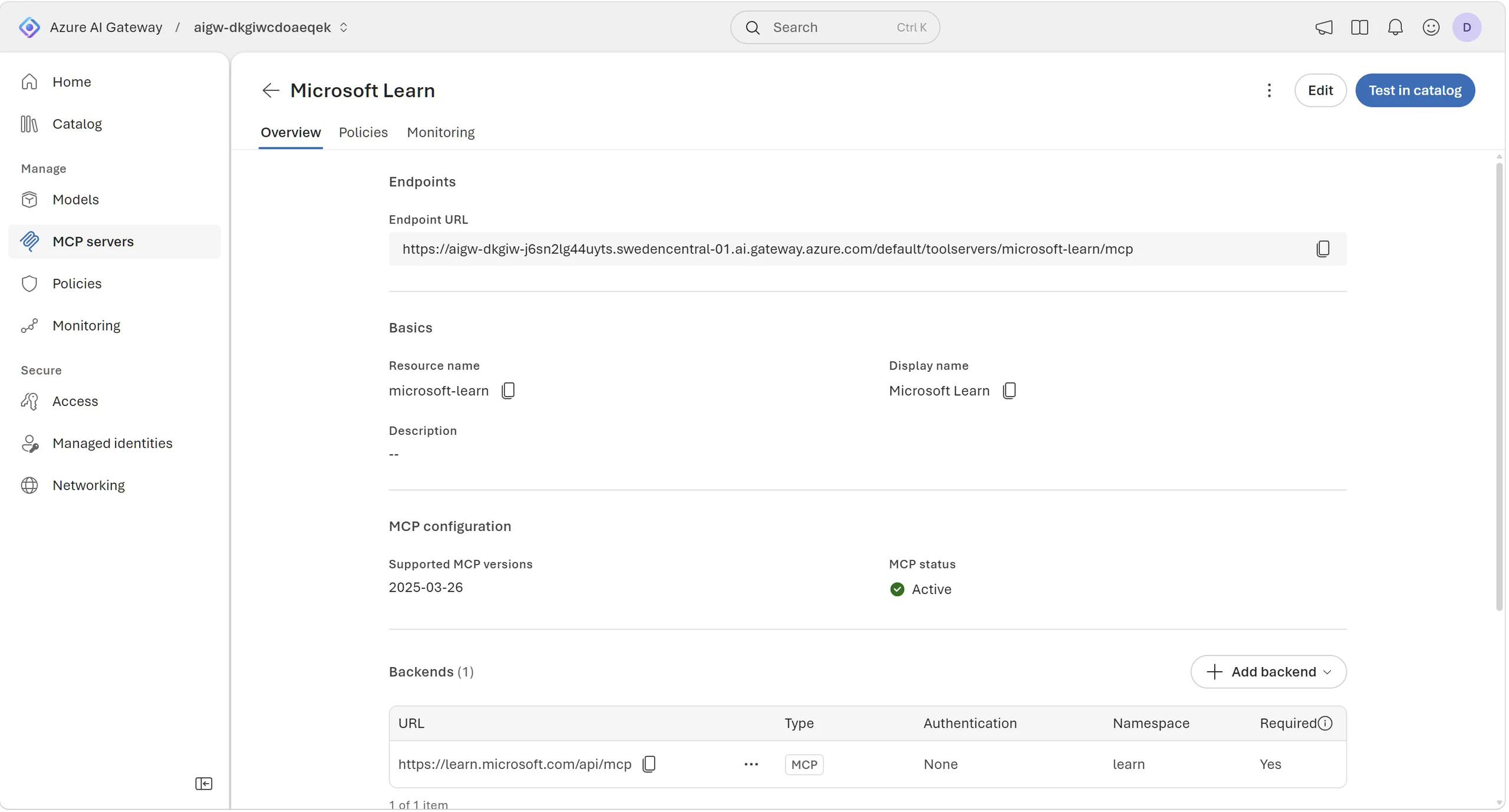
The MCP controls let you allow or block individual tools, and multiple backends can share one endpoint. I kept this example to one server and a read-only search.
Monitoring
You can follow a call through its policy and backend stages, then open the matching log. Saves a bit of faff when you’re tracking down a rejection.
Connect Application Insights from Monitoring → Configure telemetry. I enabled all three OpenTelemetry signals: logs, traces and metrics. The gateway identity needs Monitoring Metrics Publisher on the destination’s data collection rule.
Here’s the exporter configuration, using the endpoints returned by Application Insights:
telemetryExporterType: 'OpenTelemetry'
payloadCapture: false
openTelemetry: {
  metricsEndpoint: { url: endpoints.metrics }
  logsEndpoint: { url: endpoints.logs }
  tracesEndpoint: { url: endpoints.traces }
}
authentication: {
  managedIdentity: { resource: 'https://monitor.azure.com' }
}
I included the caller’s tid and oid claims in the telemetry. Payload logging is off in this; token counts and request outcomes are still recorded however.
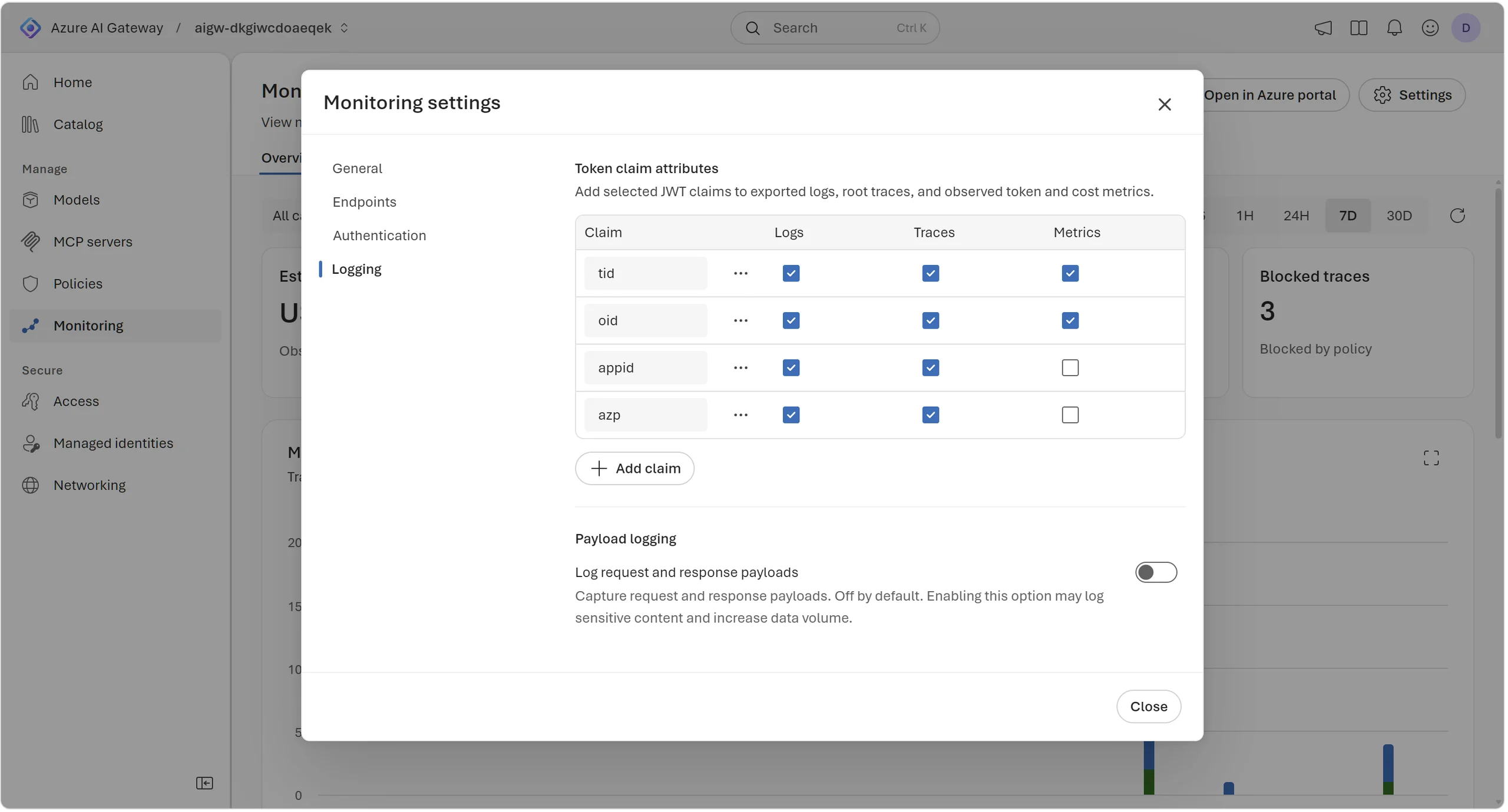
Enabling OTLP ingestion creates an Azure-managed resource group containing a data collection rule and Azure Monitor workspace. Reader on my monitoring group wasn’t enough to see the dashboard. Adding Reader on the managed group and Monitoring Data Reader on its workspace got it working.
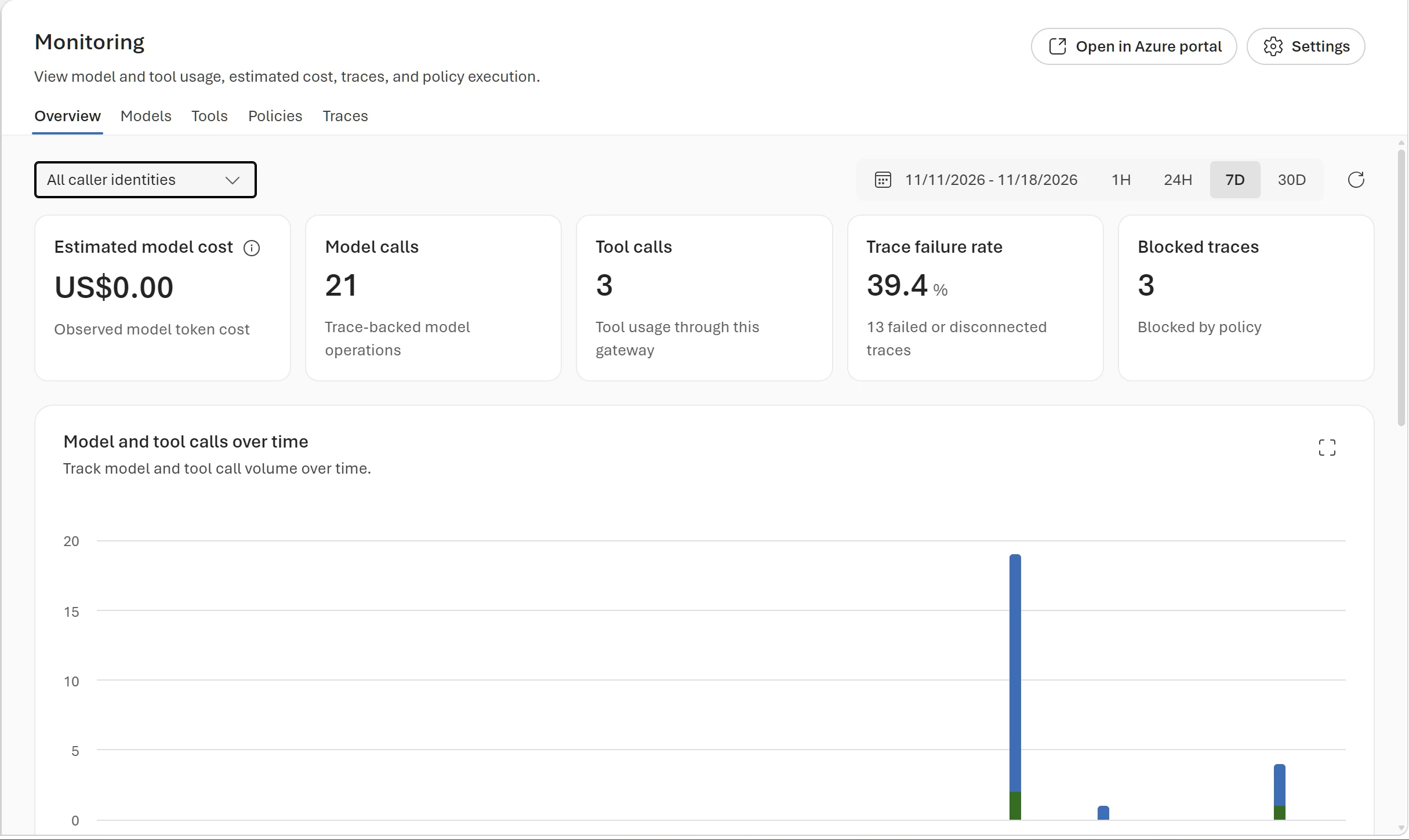
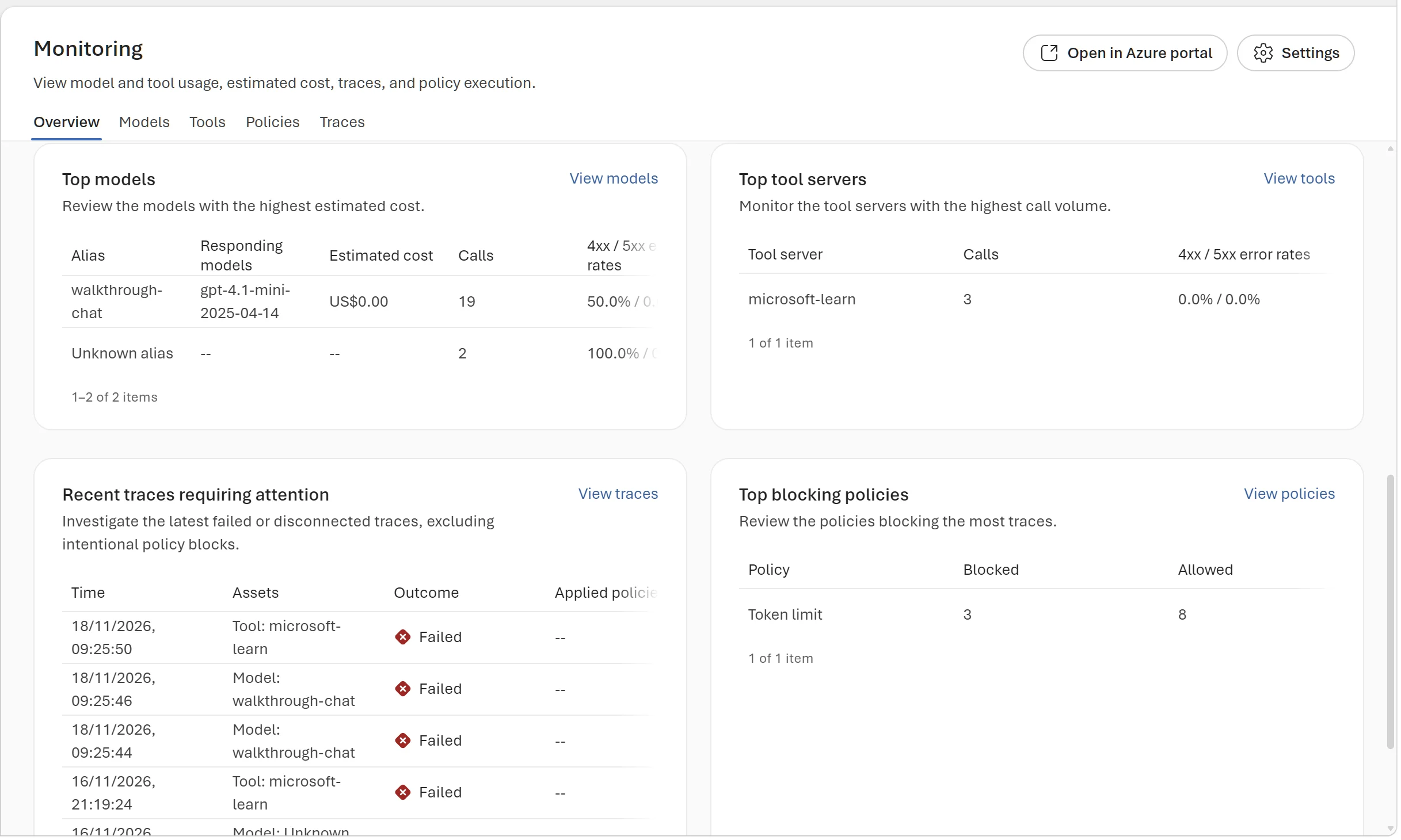
Opening the Traces you can also check out successful and failures, including the applied policies which is nice:
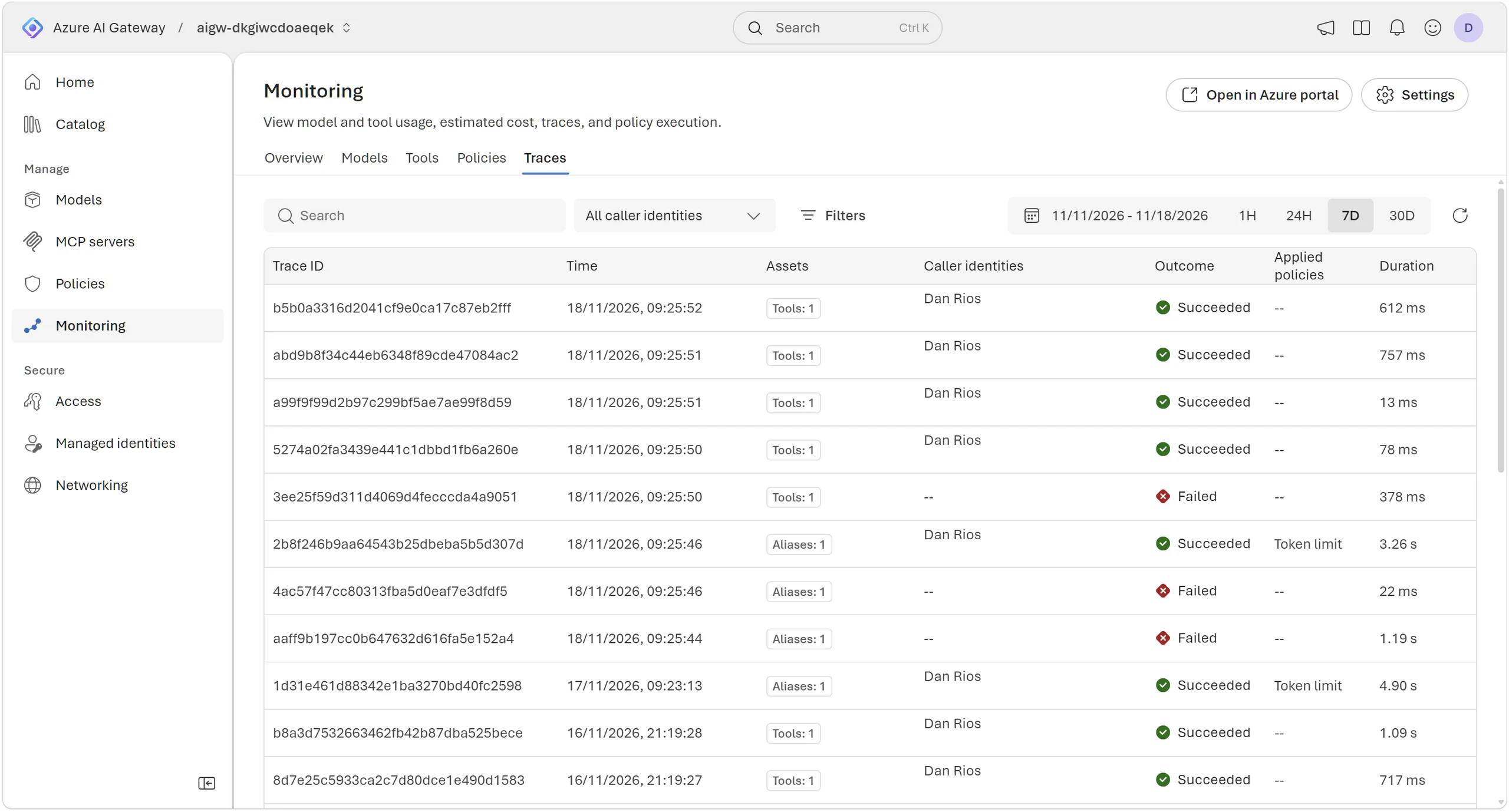
Logs land in OTelLogs and traces in OTelSpans in Log Analytics. Token and estimated-cost metrics go to the Azure Monitor workspace. Microsoft’s monitoring walkthrough covers the setup.
This query pulls the token usage straight from the request logs:
OTelLogs
| where TimeGenerated > ago(24h)
| extend InputTokens = tolong(Attributes['azure.ai_gateway.client.usage.prompt_tokens']),
    OutputTokens = tolong(Attributes['azure.ai_gateway.client.usage.completion_tokens'])
| where isnotnull(InputTokens)
| project TimeGenerated, TraceId,
    Alias = tostring(Attributes['gen_ai.request.model']),
    Model = tostring(Attributes['gen_ai.response.model']),
    InputTokens, OutputTokens
| order by TimeGenerated desc
What’s next & my take
It’s worth exploring weighted routing, failover and cost budgets, plus Model Router (preview) for automatic model selection with AI Gateway. And keeping an eye out for that private networking and outbound vNet integration to follow as key signals on if it’s right for you to adopt yet or not.
My hunch is that, whilst there’s A LOT of overlap with what we can already achieve through API Management and its XML policy engine, we’ll see more of Microsoft’s AI gateway development land here. Simpler onboarding, tighter Foundry integration and more AI features could make this the go-to gateway for enterprises using Foundry compared to APIM over time.
For now, I think if you need a GitOps approach to this you’ll probably want to stay put with APIM, using APIOps CLI until AI Gateway gets some more feature parity especially around private networking.
reply